
Collaboration in Nila
Nila keeps collaboration close to the design, so your team can review work, share feedback, and make decisions without moving conversations to another tool.
Add people to a project with the right level of access, see who is currently viewing the project, follow their cursors and selections, and discuss designs through contextual comments. You can also use mentions, reactions, attachments, voice comments, and dictation to communicate in the way that works best for the conversation.
Whether your team is reviewing together in real time or responding asynchronously, the discussion stays connected to the design it refers to.
Add People to a Project
Add people as project members when you want them to access and collaborate on a project.
Project members can access all pages within the project. What they can do within the project depends on the permission assigned to them.
To add project members:
Click on Share.
Select the + icon.
Search for the people you want to add.
Select one or more members.
Under Add selected members as, choose a permission.
Select Add members.
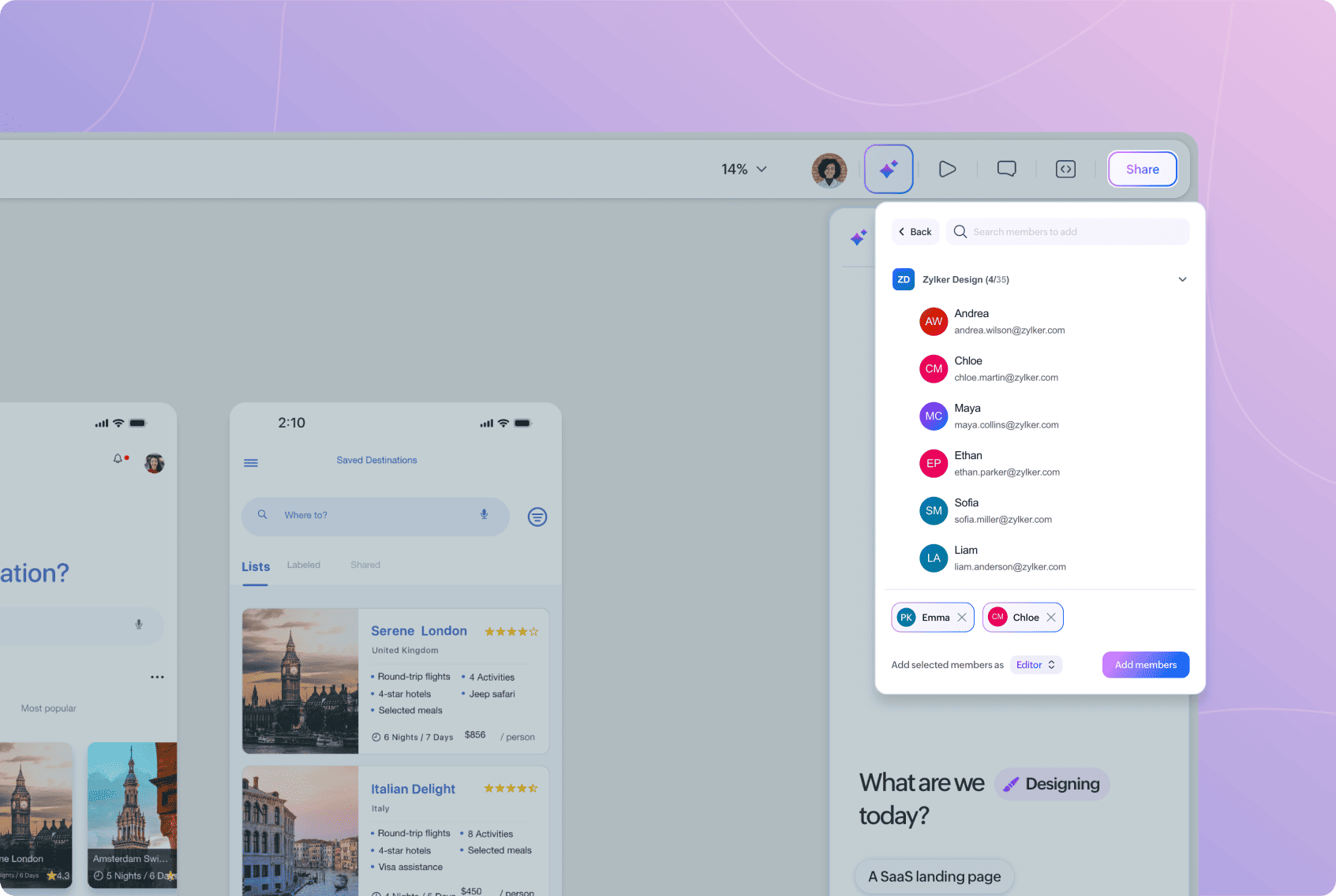
You can select multiple people and add them with the same permission at once.
Choose a Project Permission
Choose a permission based on how you want the person to collaborate on the project:
Viewer: Can access and view the project.
Commenter: Can view the project and participate through comments.
Editor: Can edit and work on the project.
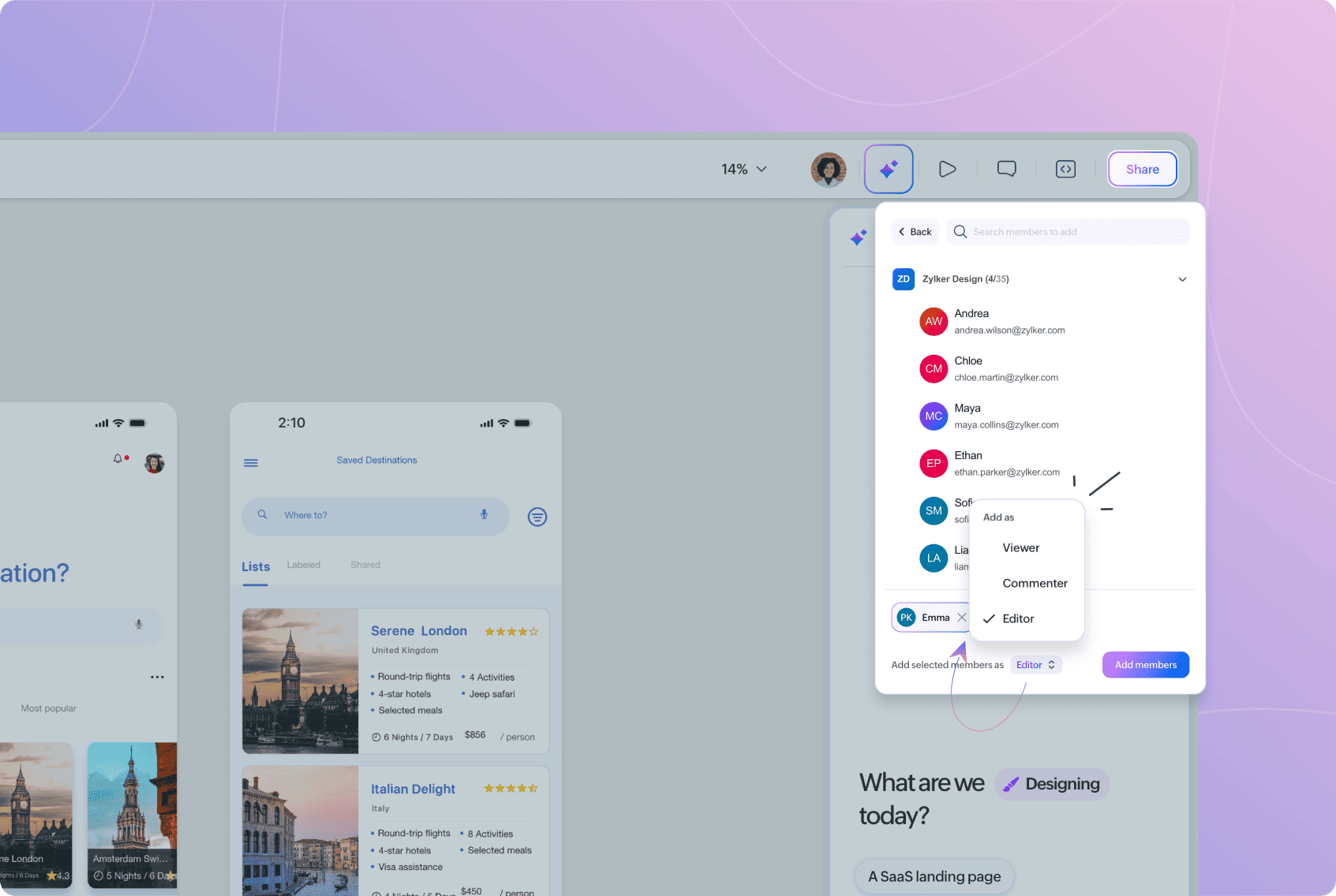
Project permissions apply to the individual project. The same person can have different permissions across different projects.
For a complete explanation of roles and project permissions, see Roles in Nila.
View Project Members
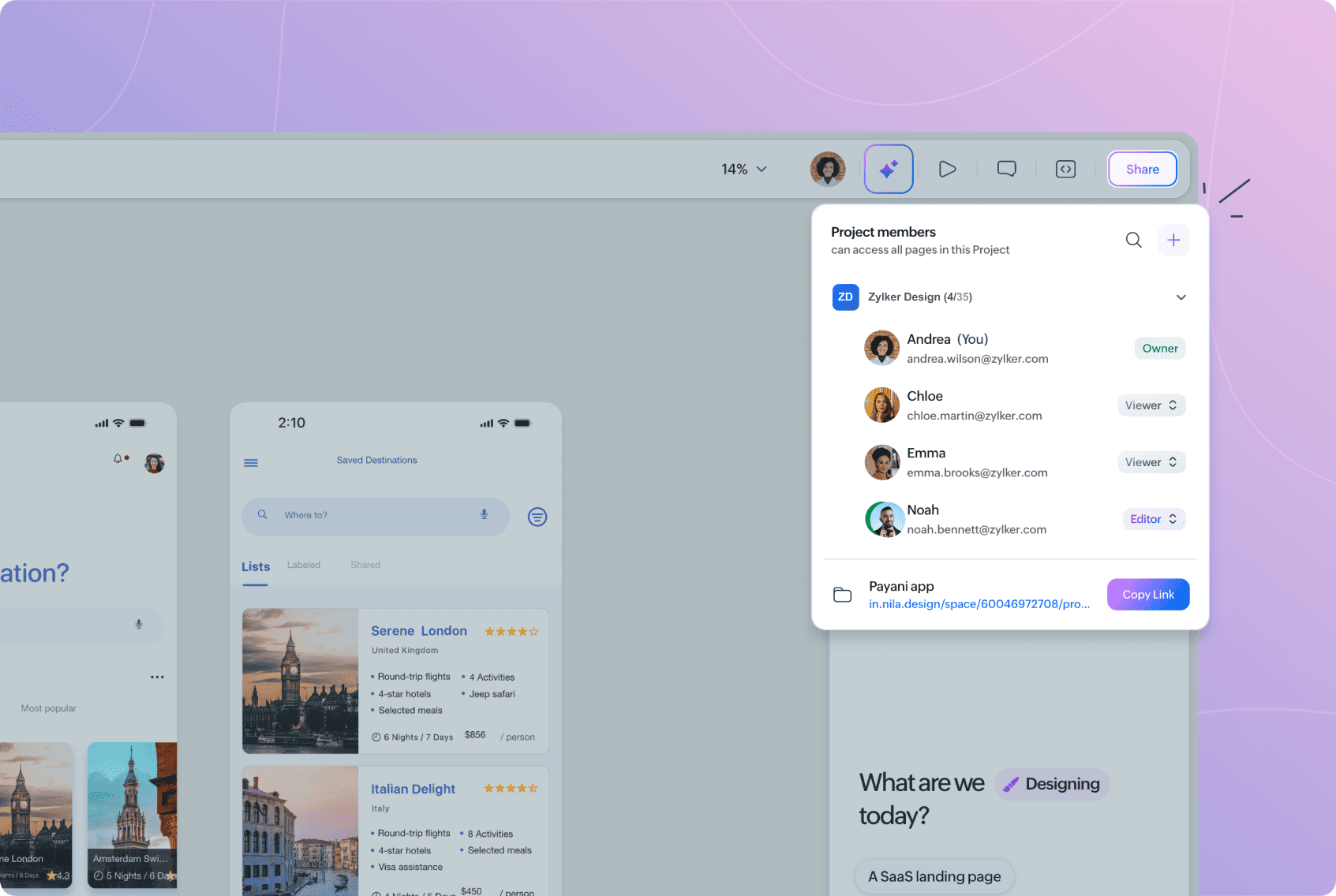
Open Project members to see who currently has access to the project.
Members are grouped by team, and you can view their name, email address, and project information such as ownership where applicable.
The project Owner is identified in the member list.
Use Search when you need to find a particular member.
Copy the Project Link
The Project members panel also displays the project link.
Select Copy Link to copy it and share it with someone who needs to open the project.
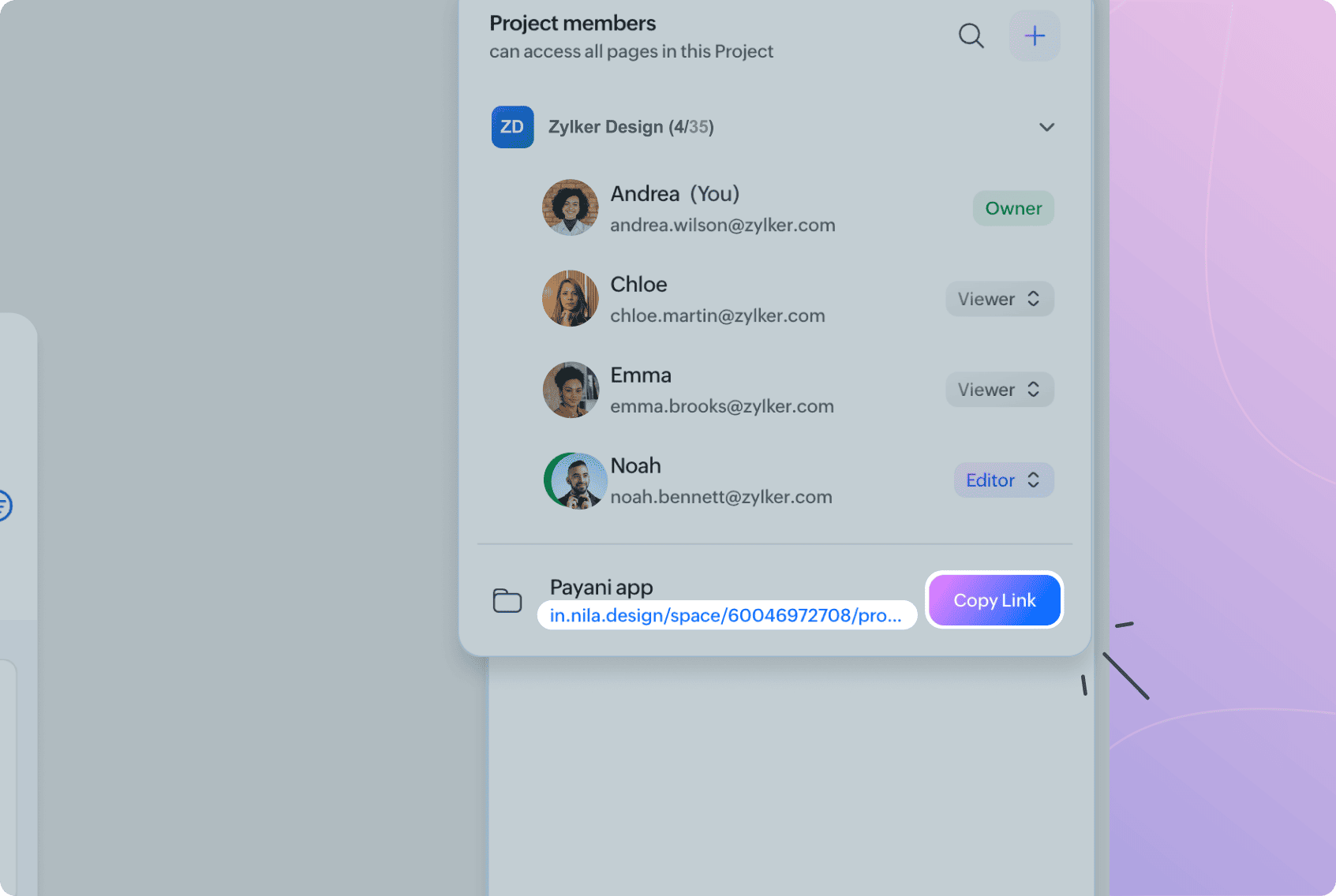
A project link does not by itself change someone's access to the project. Their ability to open and work with the project depends on the access and permission they have been given.
Collaborate in Real Time
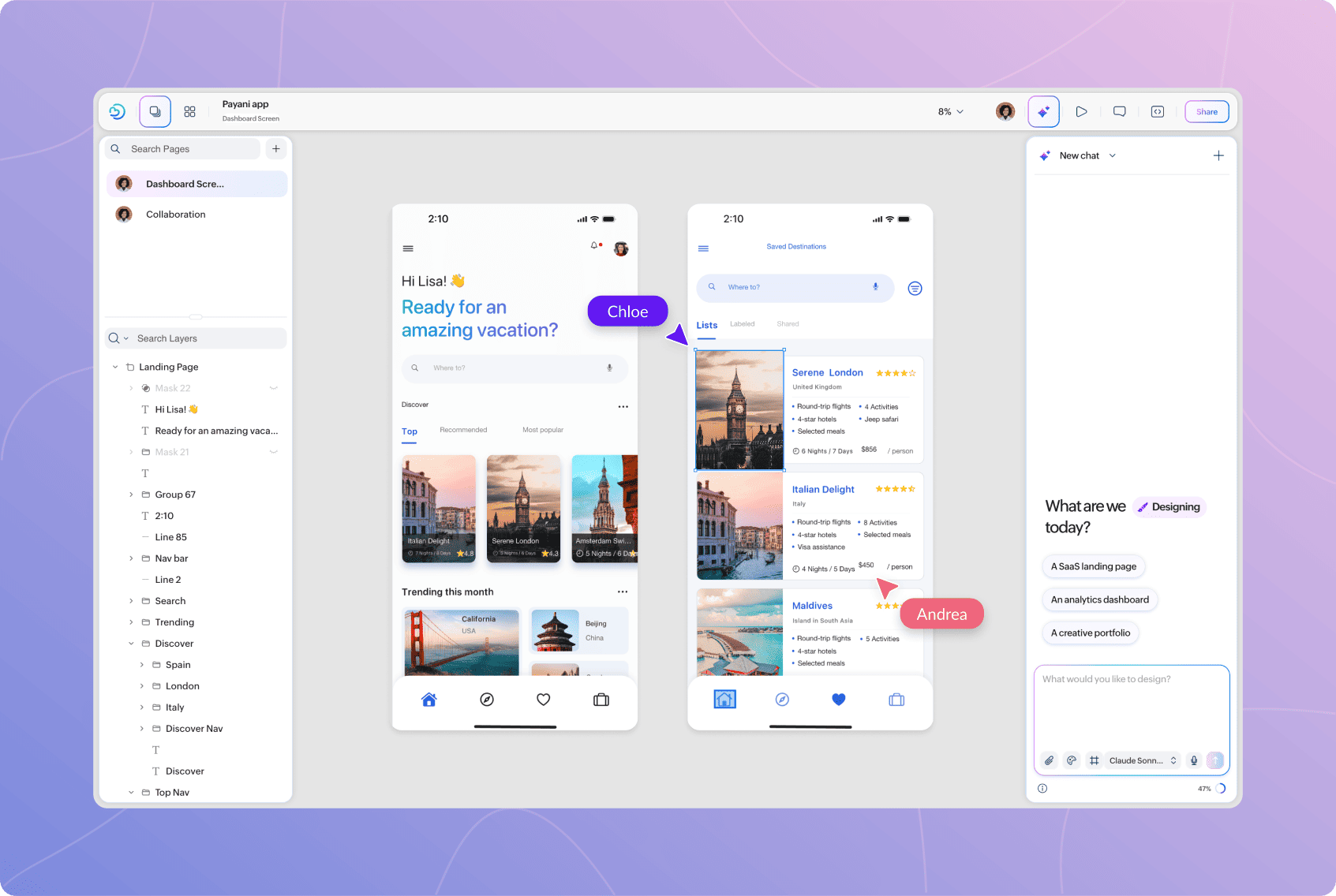
When people open the same project, Nila gives you visibility into who is there and where they're working.
This makes it easier to review a design together without needing to constantly ask which screen or element someone is referring to.
See Who Is Viewing the Project
Open Active members to see who is currently viewing the project.
Active members are grouped by team. Your own account is marked with (You).
If nobody else is currently viewing the project, Nila lets you know that you're the only person there.
As other members join or leave the project, you can use this view to understand who is currently present.
See Cursors and Selections
During real-time collaboration, cursors and selections show where other people are working within the design.
This can be useful when reviewing a design together, walking someone through a particular area, or discussing changes while everyone is looking at the same project.
Manage Cursor Visibility
Open Cursor settings to control which cursors and selections are visible.
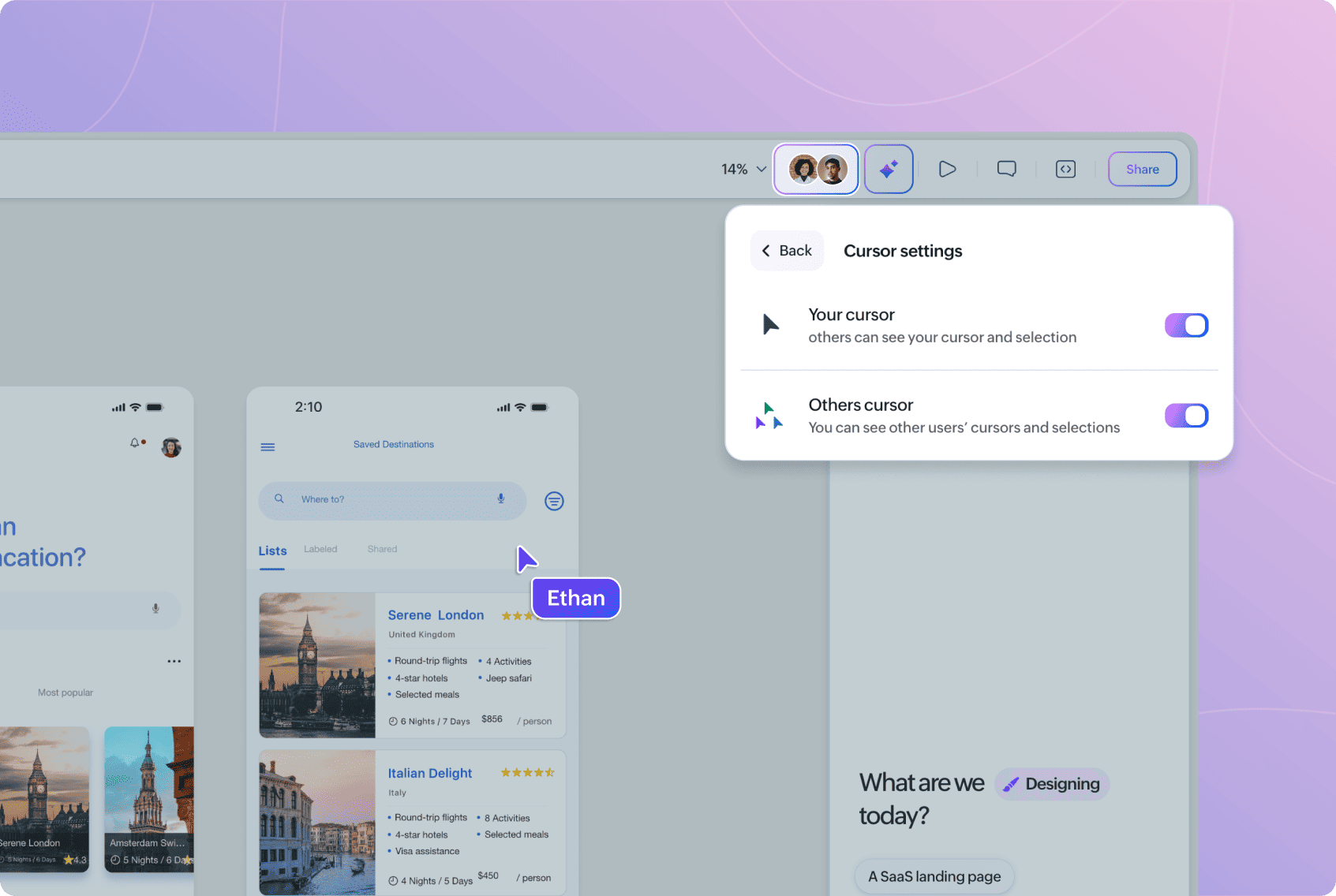
You can manage two settings independently:
Your cursor
Turn this on to let other users see your cursor and selection.
Turn it off when you don't want your cursor and selection to be visible to others.
Others cursor
Turn this on to see other users' cursors and selections.
Turn it off when you want to hide other users' cursors and selections from your view.
Because these settings are independent, you can control what others see from you separately from what you see from them.
Add Comments
Comments let you discuss a design directly in Nila, keeping feedback connected to the work being reviewed.
You can leave general feedback, pin a comment to an exact location, or associate feedback with particular elements depending on what you're discussing.
To add a general comment:
Open the Comments panel.
Select Leave a comment.
Enter your feedback.
Select Post.
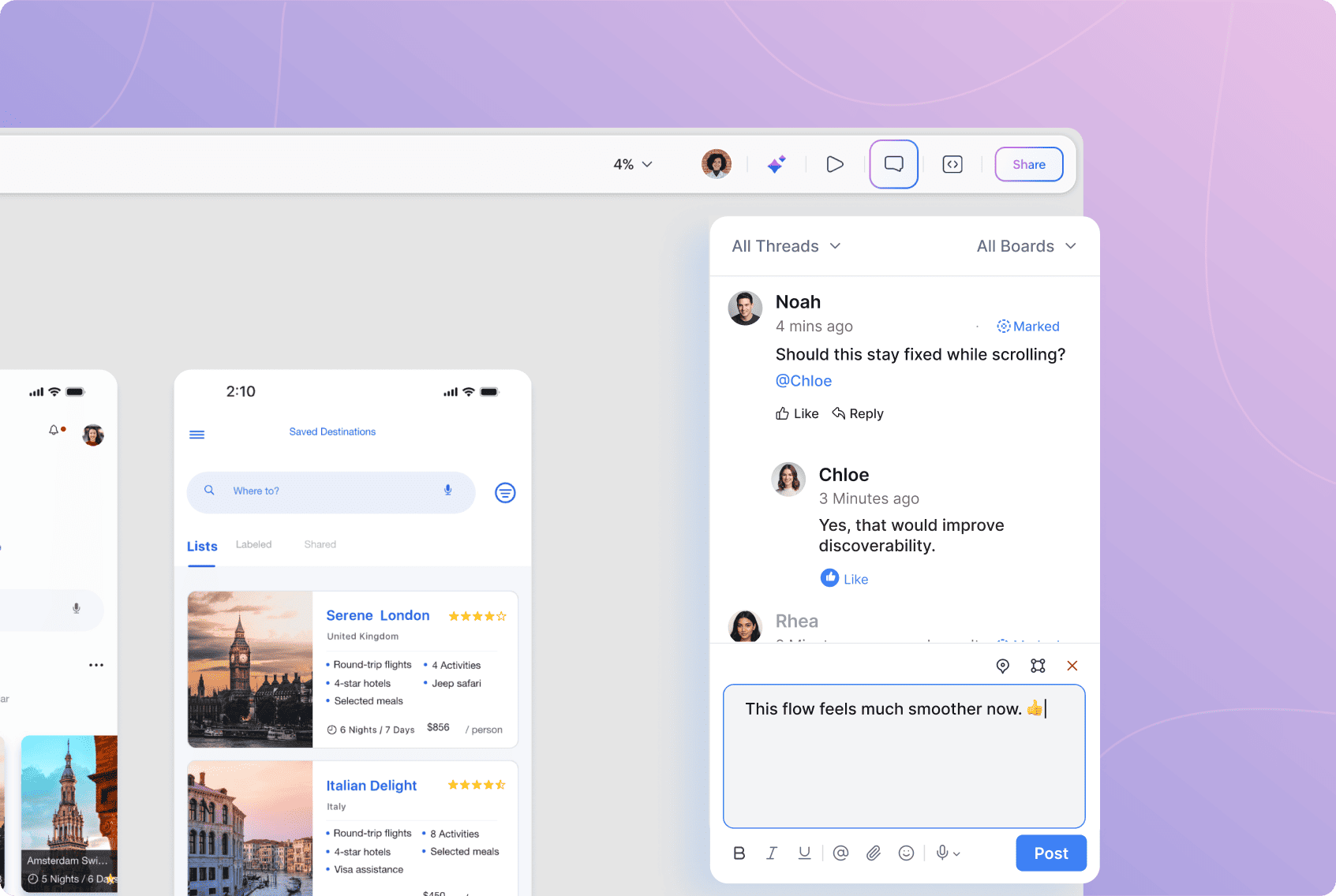
A general comment isn't tied to a particular location on the canvas, making it useful for broader feedback about the project, page, or design.
Pin a Comment to a Location
Use a pin when your feedback refers to an exact location on the canvas.
For example, instead of writing that something needs to change "near the top-right of the card," you can place the comment directly at that location.
To pin a comment:
Start a comment.
Select the Pin icon.
Select the location on the canvas where you want to place the pin.
Enter your feedback.
Select Post.
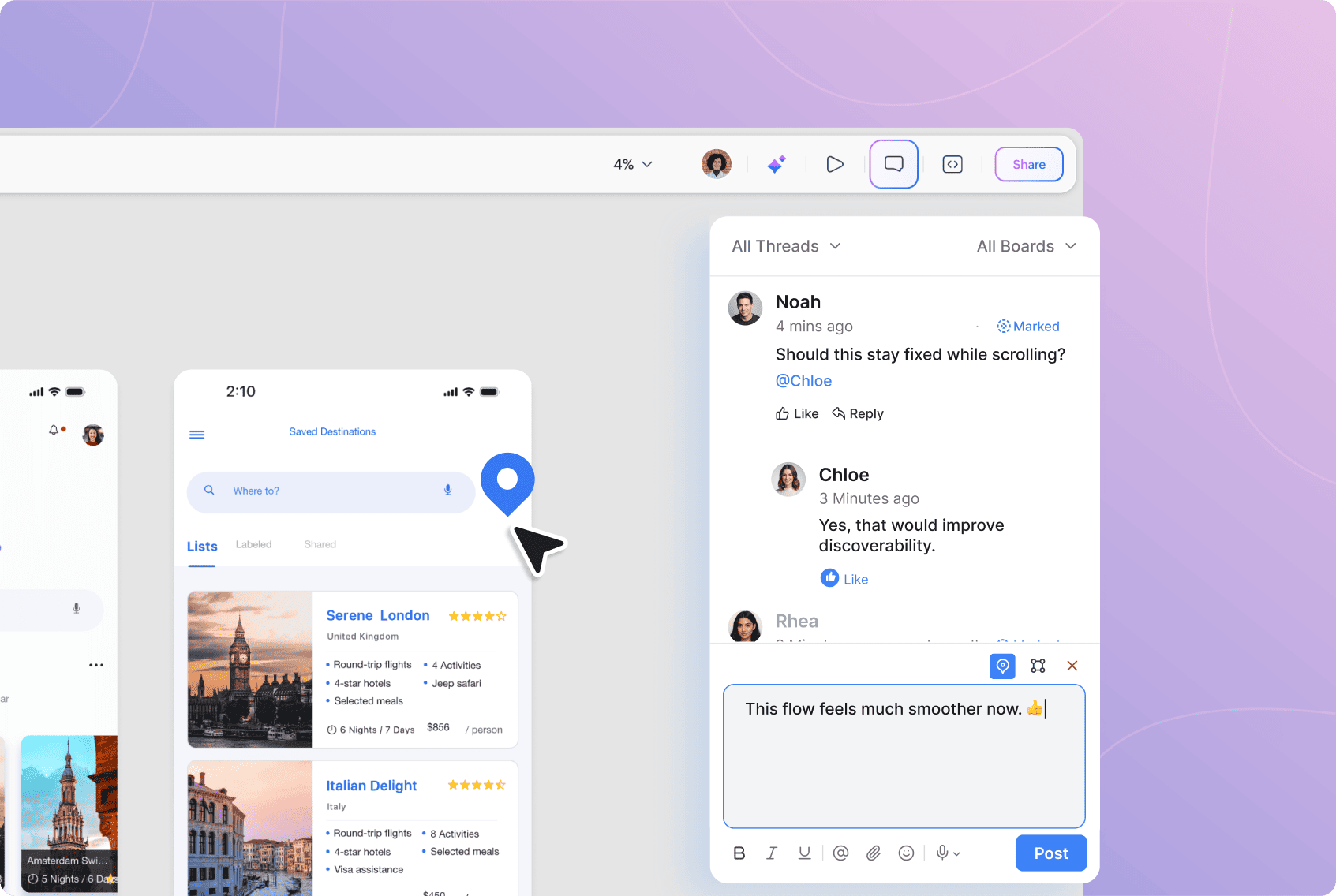
The comment remains associated with that location, giving anyone reading it the visual context for your feedback.
You can place pins at different locations across the canvas when separate areas need their own discussions.
If you place a pin incorrectly before posting, use the close option on the pin indicator to remove it.
Comment on Specific Elements
When your feedback applies to an element rather than simply a location, use the Mark option.
This associates the discussion with the relevant element or elements in the design.
To mark elements:
Start a comment.
Select Mark.
Select the element you want to comment on.
Hold Shift while selecting if you want to include multiple elements.
Enter your feedback.
Select Post.
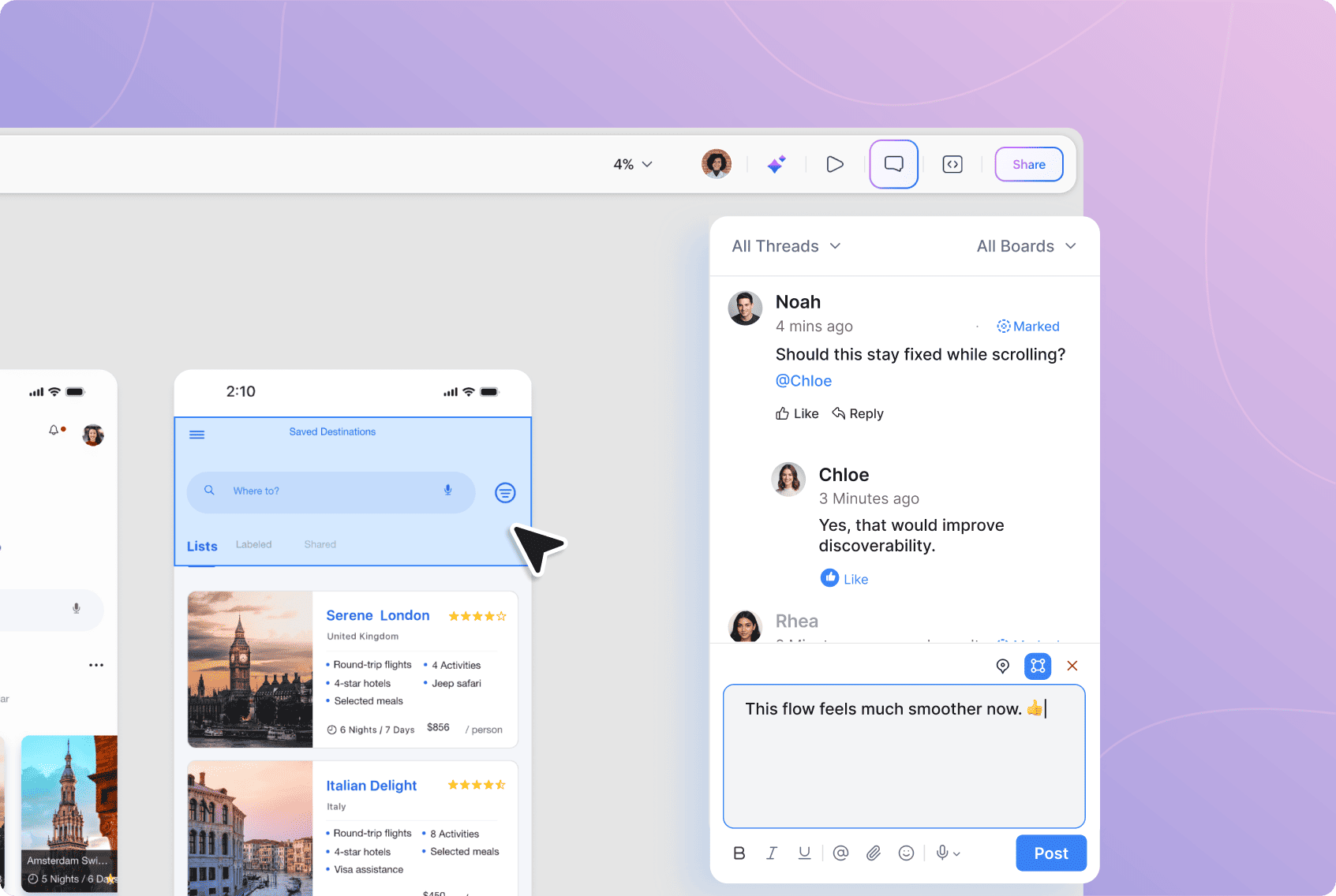
Use this when a discussion applies to a particular object or a group of related elements.
To clear a mark before posting, use the close option on the mark indicator.
View Comments on the Canvas
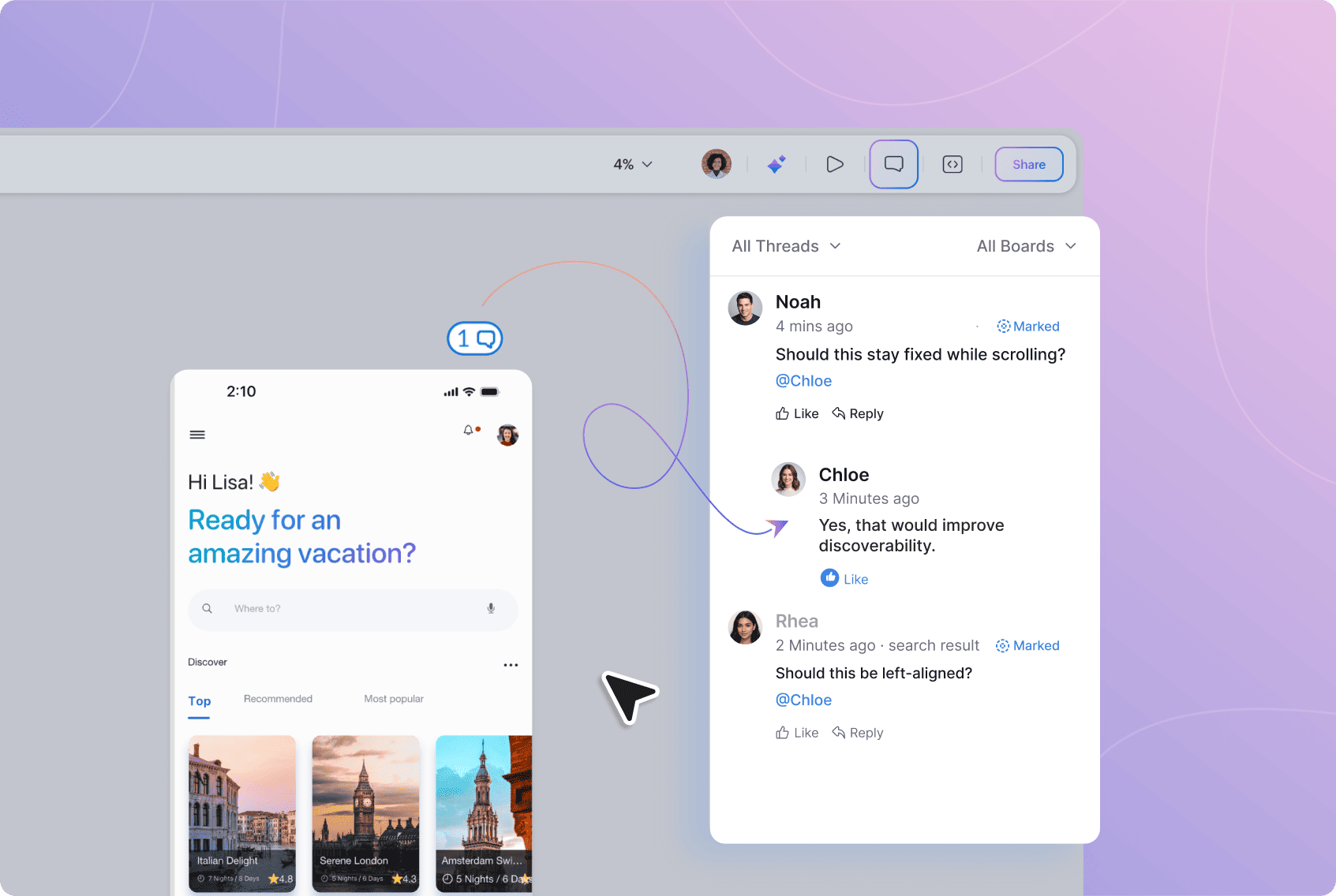
Comments associated with the design are represented on the canvas, making it easier to see where discussions are happening.
Boards with feedback display a comment indicator. The number on the indicator shows how many comments are associated with that board.
This gives you a quick way to identify which boards contain feedback before opening individual discussions.
Select a comment or its corresponding discussion to return to the relevant area of the design.
Work With the Comments Panel
The Comments panel brings the project's discussions together in one place.
From the panel, you can:
Read comment threads.
Open discussions.
Reply to comments.
See where feedback belongs on the canvas.
Move between discussions.
Filter comments by board.
Find unread conversations.
Find conversations where you've been mentioned.
Access archived discussions.
This is particularly useful when a project contains several boards or has accumulated feedback over multiple review cycles.
Filter Comments by Board
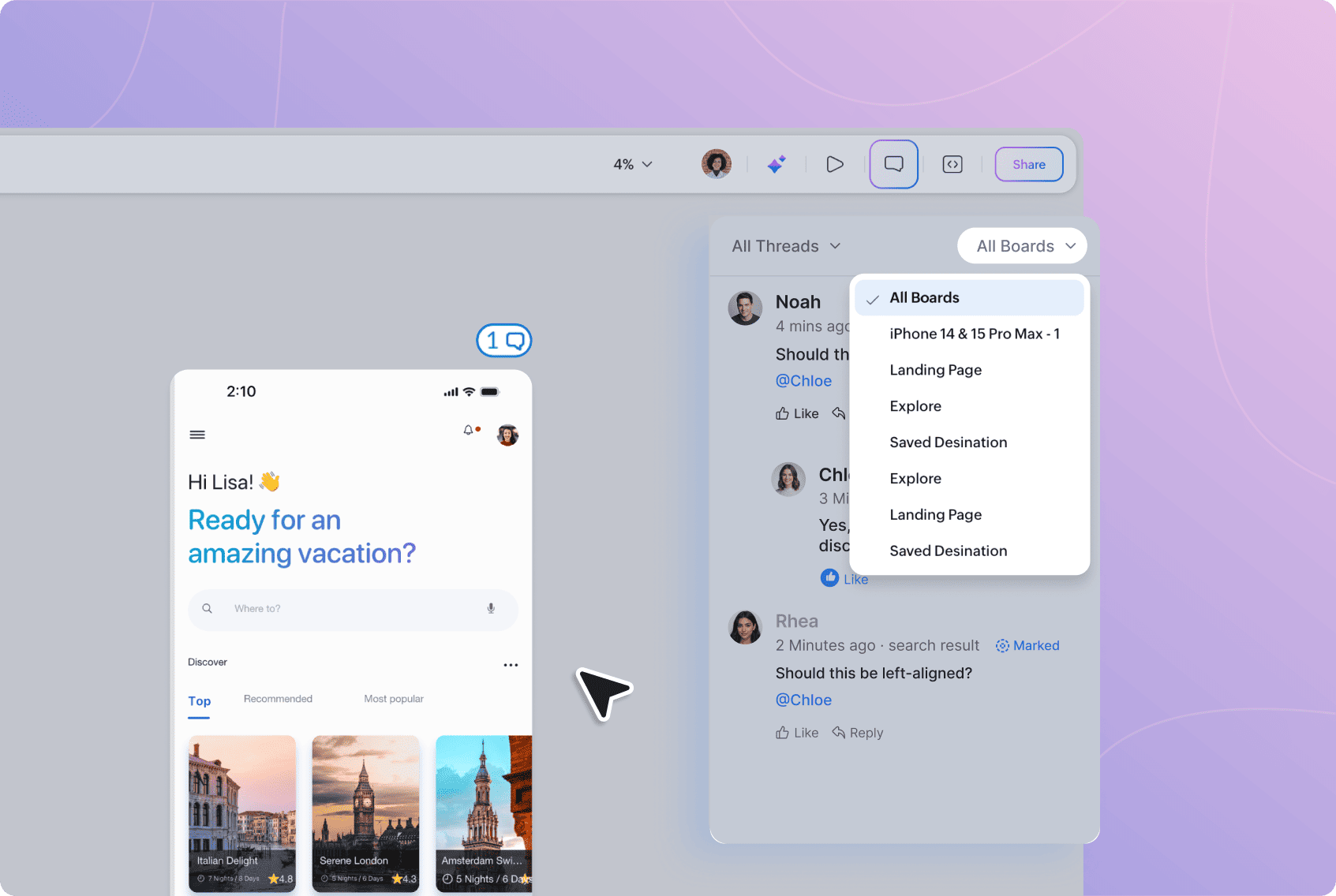
Use the board filter at the top of the Comments panel to control which boards' discussions are shown.
Select All Boards when you want to see comments across the project.
When you only want to review feedback for a particular board, choose that board from the filter.
This can make large reviews easier to work through one board at a time.
Filter Comment Threads
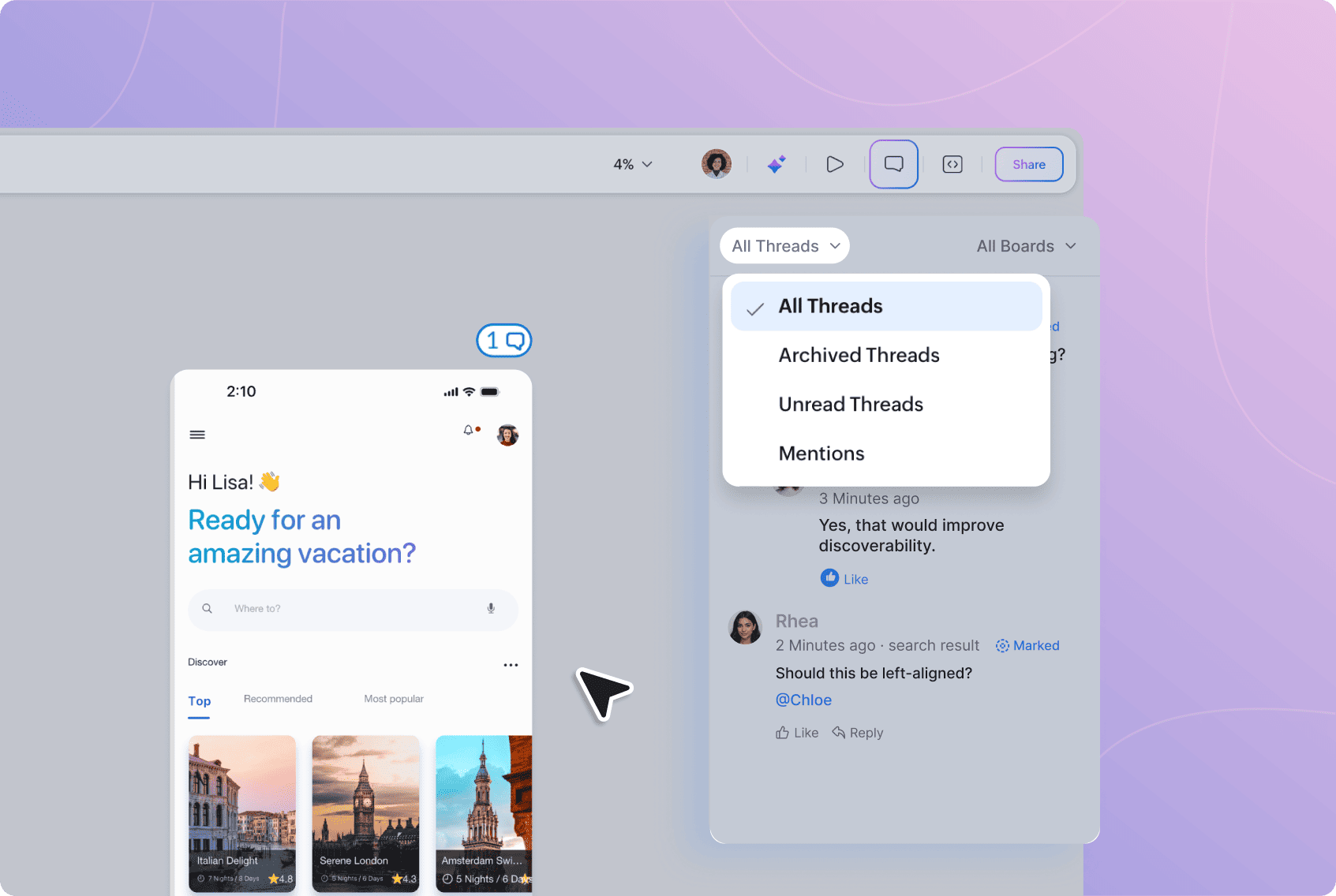
Use the thread filter to focus on a particular type of conversation.
You can choose:
All Threads — View all current comment threads.
Archived Threads — View conversations that have been archived.
Unread Threads — Find discussions you haven't read yet.
Mentions — Find discussions where someone has mentioned you.
For example, use Unread Threads when returning to a project after other people have reviewed it, or Mentions when you want to focus specifically on conversations that need your attention.
You can use the thread and board filters together to narrow the discussions further.
Reply to Comments
Use replies to continue a conversation around the same piece of feedback.
To reply:
Open the comment you want to respond to.
Select Reply.
Enter your response.
Select Post.
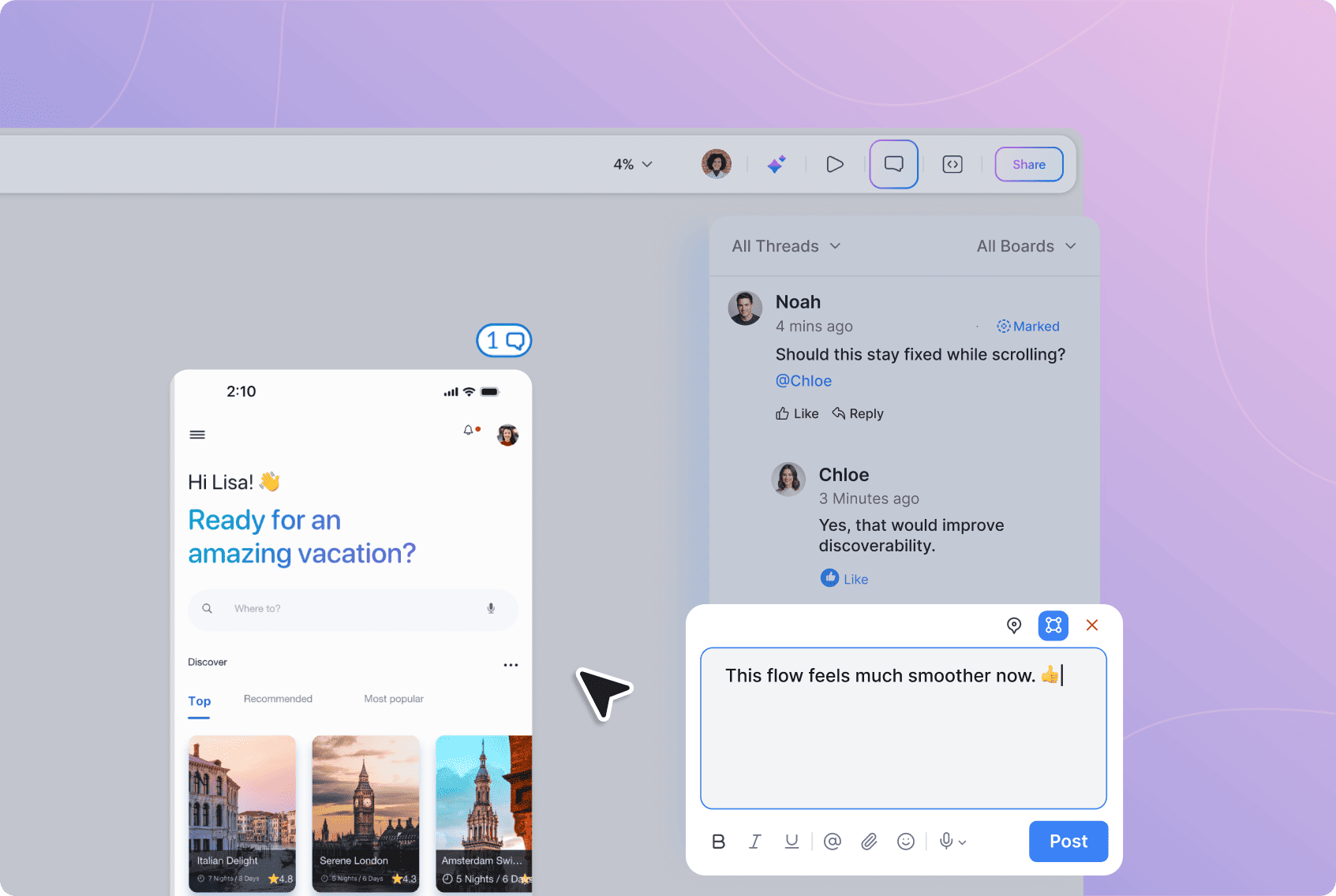
Your response stays within the same thread as the original comment.
Keeping related replies together makes it easier to understand what was discussed and avoids creating separate comments for every response.
React to Comments
Reactions give you a quick way to respond without adding another reply.
Select Like for a quick acknowledgement, or open the reactions to choose another response.
Available reactions include:
Like
Love
Laugh
Surprise
Sad
Angry
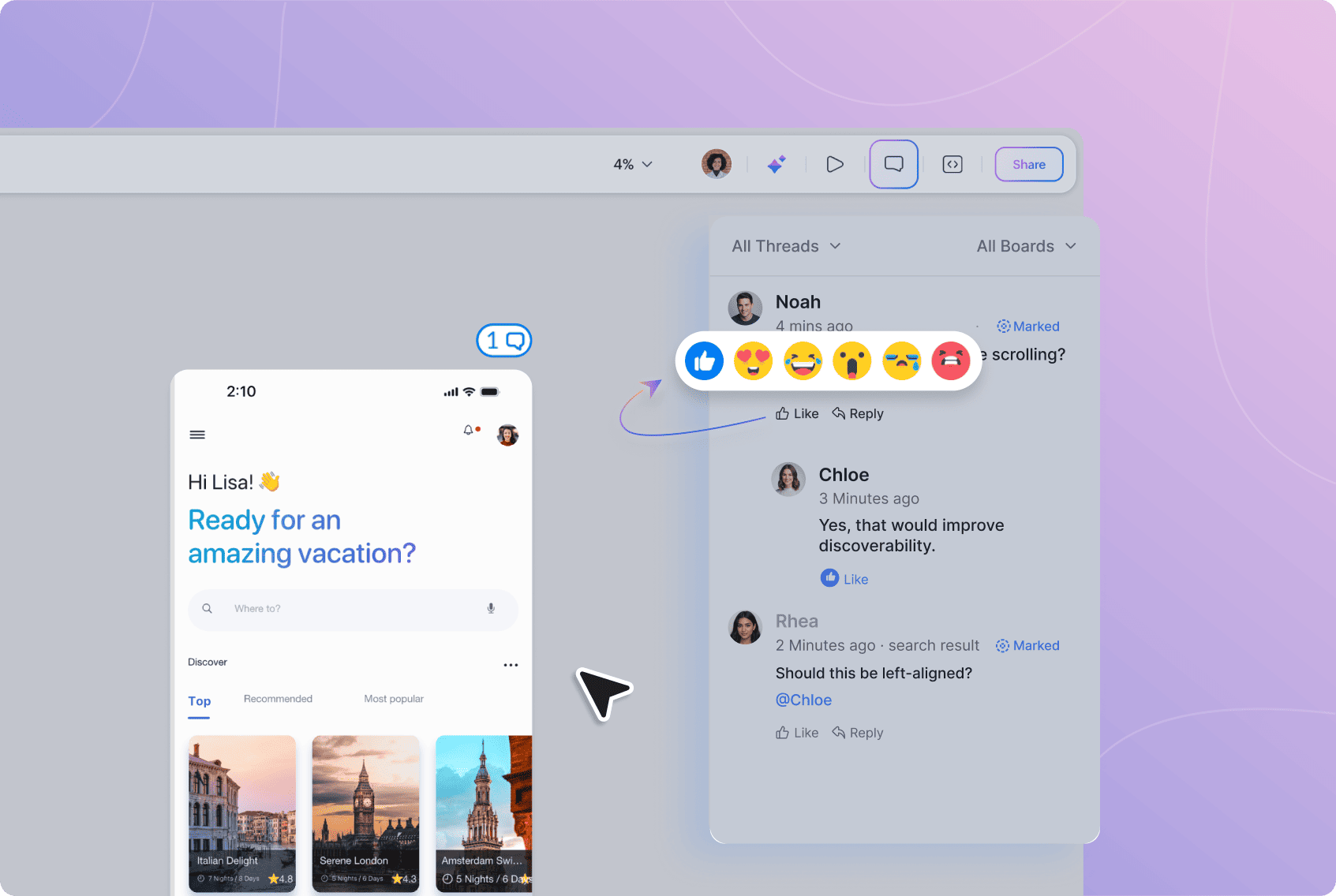
Your reaction appears with the comment and is visible to others following the discussion.
Select your reaction again if you want to remove it.
Reactions are useful for quickly acknowledging feedback, showing agreement, or responding when a written reply isn't necessary.
Archive Comment Threads
When a discussion no longer needs to remain among your active conversations, archive it.
Archiving removes the thread from the active discussion list without immediately deleting its history.
To archive a thread:
Find the comment thread you want to archive.
Select the Archive option.
The thread moves to Archived Threads, where you can access it again later.
This is useful for keeping current discussions focused while retaining conversations that have already been addressed.
Delete an Archived Comment
Comments aren't deleted directly from the active conversation.
To permanently remove a comment, first archive it and then delete it from Archived Threads.
To delete an archived comment:
Open the thread filter.
Select Archived Threads.
Find the comment you want to remove.
Select Delete.
Deleted comments cannot be recovered.
Archiving first helps prevent an active discussion from being removed accidentally.
Mention Someone
Use mentions when a comment needs the attention of a particular project member.
To mention someone:
Open the comment composer or reply to an existing thread.
Select @ or enter @ while writing.
Choose the member you want to mention.
Finish your message.
Select Post.
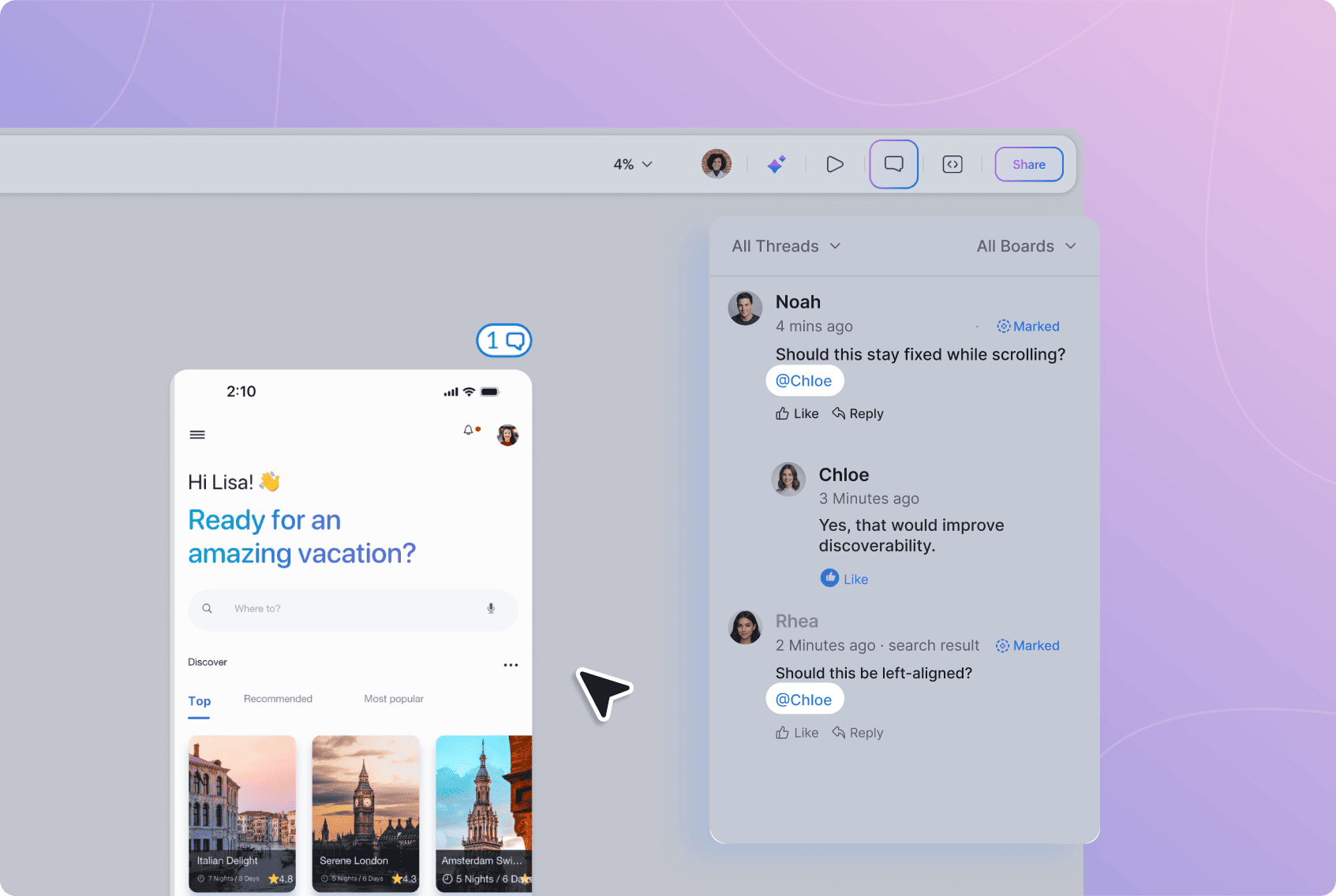
For example:
@Alex, can we check the padding here?
Mentions are useful when you want to:
Ask someone for input.
Direct a question to a particular person.
Bring someone into an existing discussion.
Draw attention to feedback that needs their response.
The mentioned member is notified and can open the relevant conversation directly.
Attach Files to Comments
Add an attachment when a reference can explain your feedback more clearly than text alone.
To attach a file:
Open the comment composer.
Select the Attachment icon.
Choose the file you want to add.
Add any accompanying message.
Select Post.
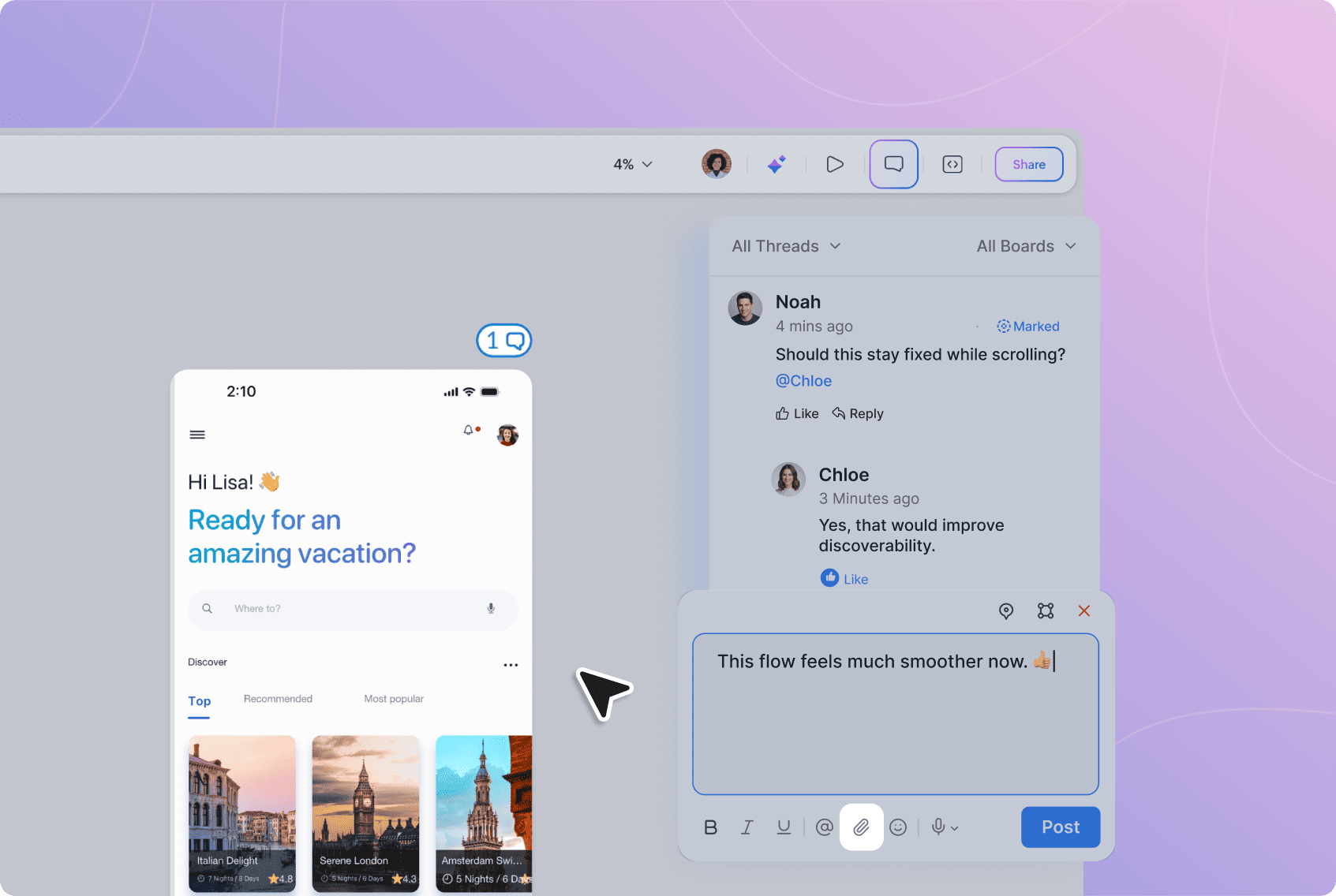
Attachments can be useful for sharing reference images, screenshots, examples, or other supporting material alongside your feedback.
The attachment stays with the comment so anyone reading the discussion has the relevant reference available in context.
Format Your Comments
The comment composer includes formatting controls for structuring written feedback.
You can use options such as bold, italic, and underline when you need to emphasize part of a comment.
Formatting can be useful for longer reviews where you want to make important points or actions easier to identify.
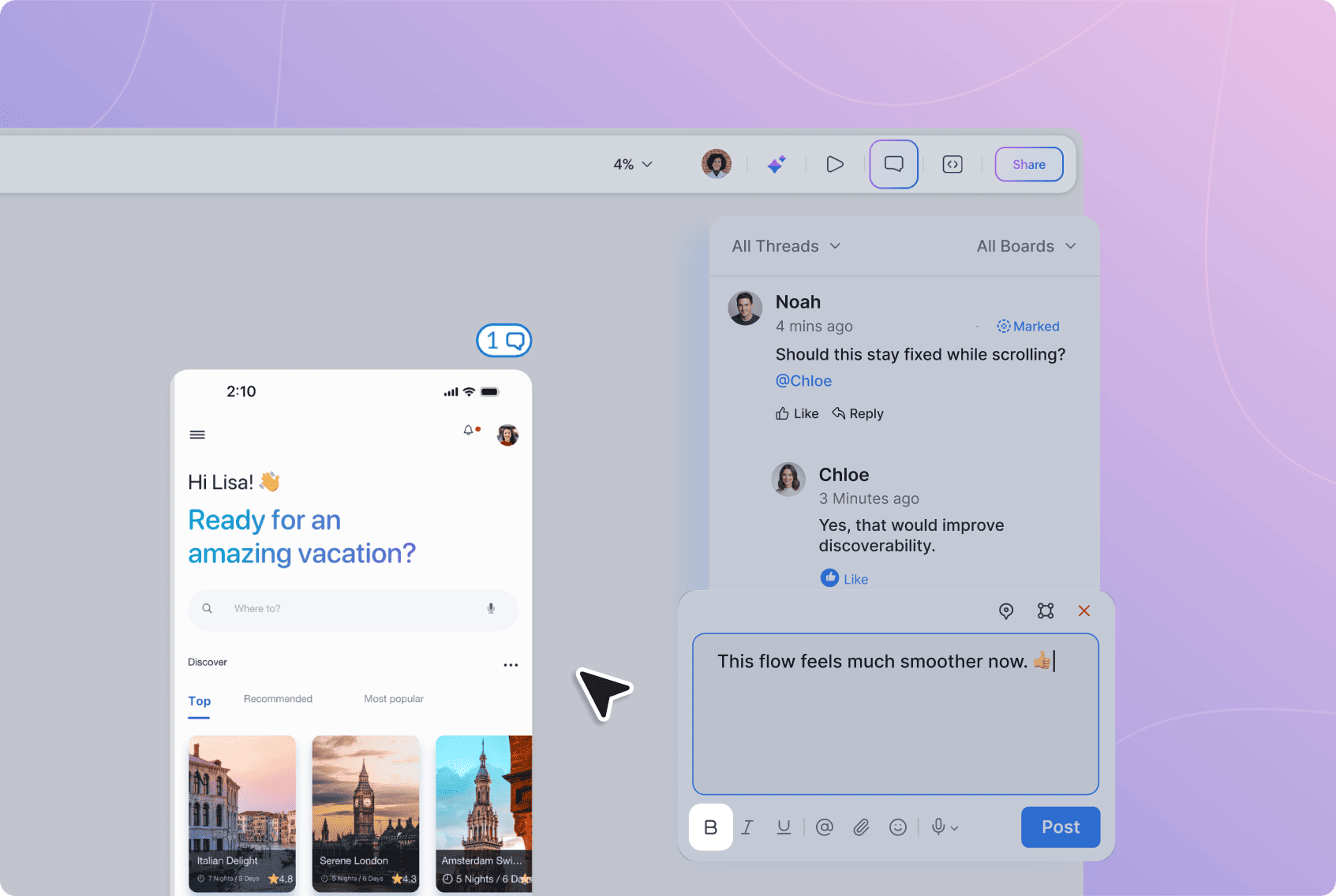
Add Emojis to Comments
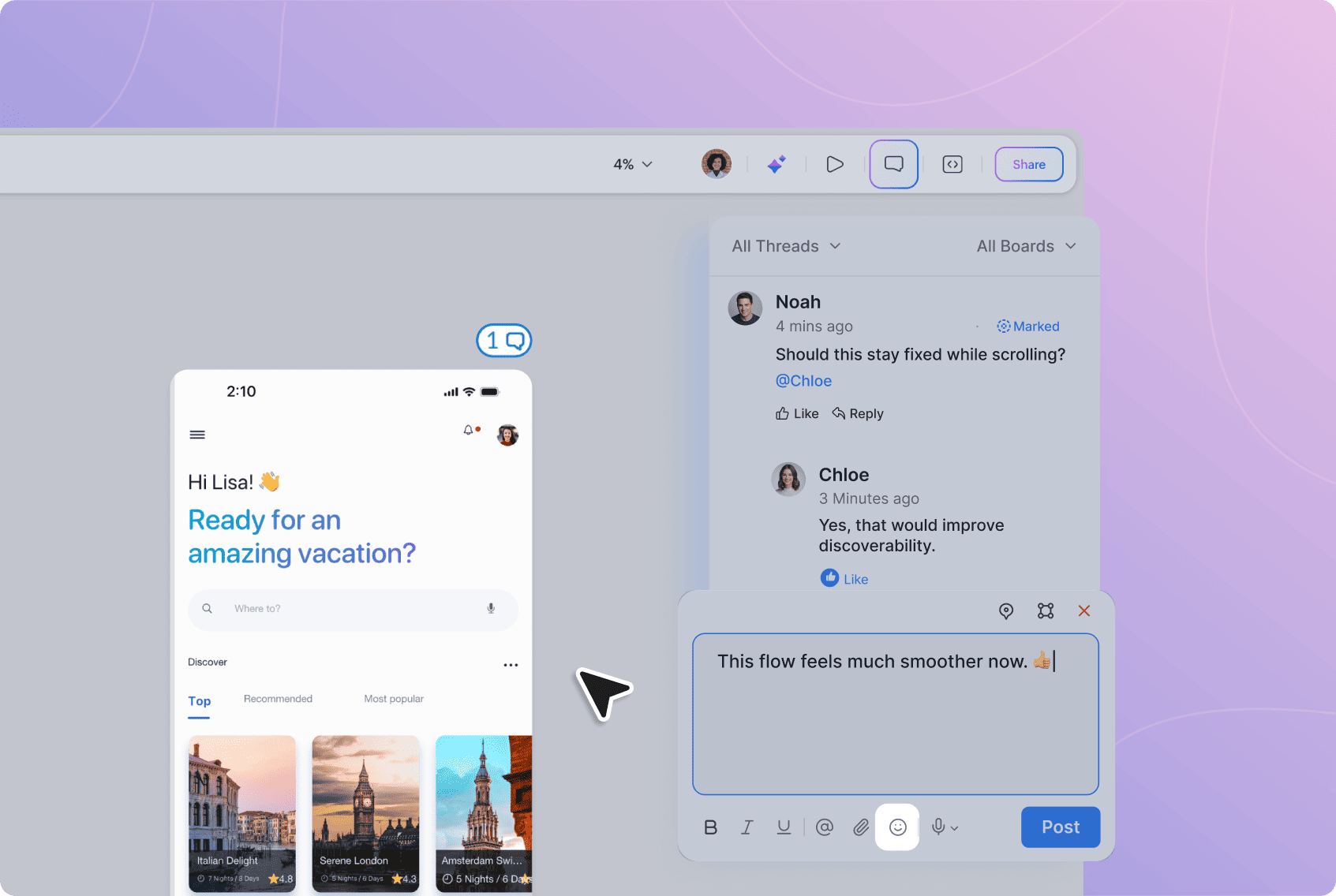
Select the Emoji icon to include an emoji in your comment.
Emojis can help communicate tone or add a lightweight response alongside written feedback.
Leave a Voice Comment
Some feedback is easier to explain than type.
Use Record Audio to record spoken feedback directly from the comment composer.
To record a voice comment:
Open the comment composer or a comment thread.
Open the microphone menu.
Select Record Audio.
Start recording your feedback.
Pause or resume the recording when needed.
Stop the recording when you're finished.
Select Post.
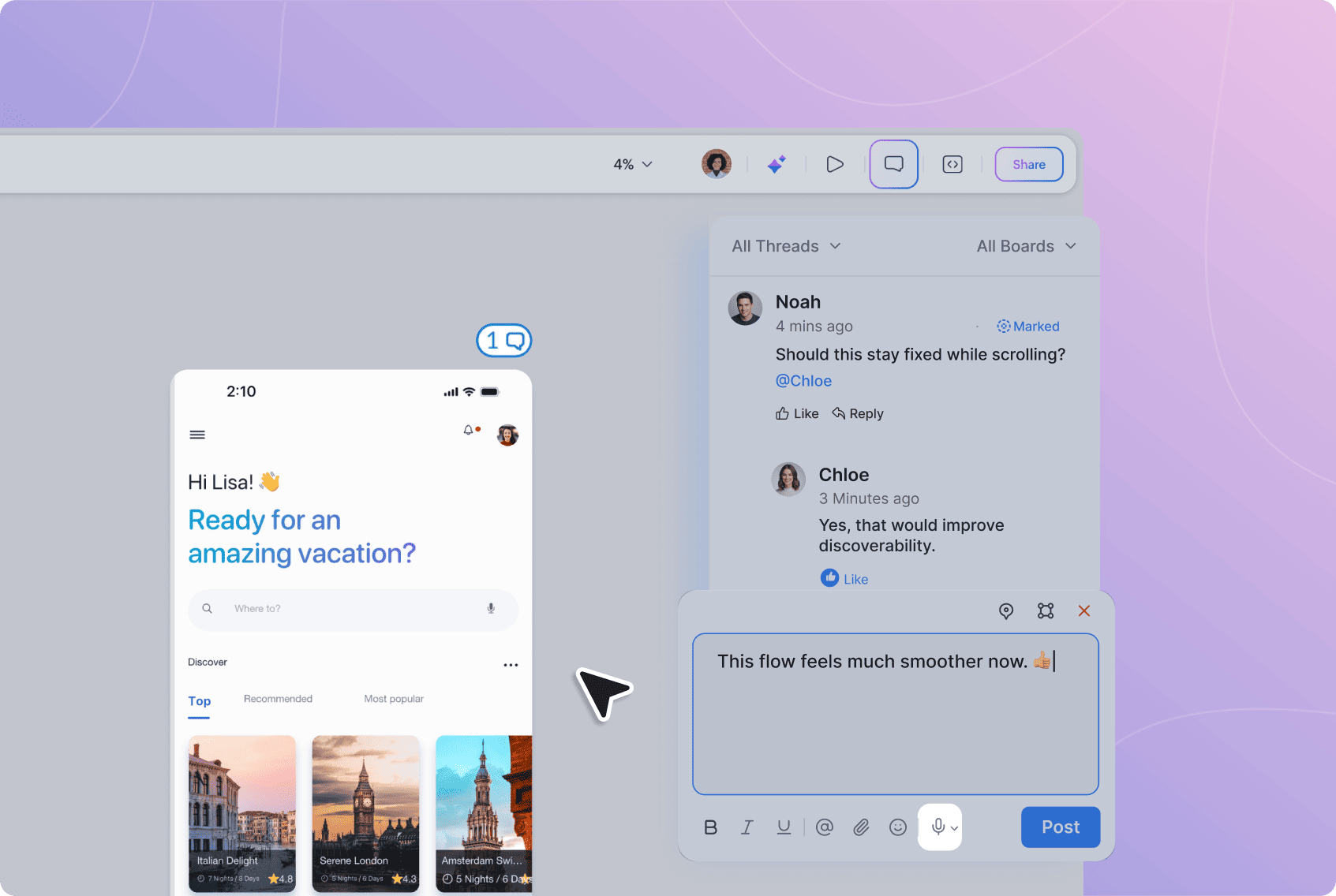
The recording appears within the comment thread so other project members can listen to it.
Nila also transcribes voice comments, allowing others to read the feedback alongside the recording.
Voice comments can be useful when you need to explain a detailed interaction, walk someone through a flow, or communicate feedback where tone and explanation matter.
Dictate a Comment
Use Dictate when you want to speak your feedback but post it as written text.
To dictate a comment:
Open the comment composer.
Open the microphone menu.
Select Dictate.
Start speaking.
Your speech is converted into text in the comment field.
Review and edit the text if needed.
Select Post.
Dictation is useful during design reviews when you want to capture detailed thoughts quickly without typing them out.
The difference between the two audio options is simple: Record Audio posts your feedback as a voice recording, while Dictate converts what you say into a written comment.
Collaborate in Real Time or Asynchronously
You don't need everyone to be in Nila at the same time to collaborate.
For asynchronous reviews, comments, replies, mentions, voice feedback, and notifications let people review and respond when they're available while keeping the discussion attached to the design.
When people are working together at the same time, Active members, cursors, selections, and contextual comments provide additional awareness of who is present and what they're looking at.
Together, these tools let your team move between live collaboration and asynchronous feedback without losing the context of the design or the conversations around it.
Found this helpful?

Can't find what you need?
Try refining your search or explore our Help Center
