
Design With Nila AI
Nila AI helps you turn a prompt into a working design. Describe what you want to create and add context such as your design system, screen size, reference files, and AI model to guide the result.
You can create UI, Webpage, and Marketing designs, then continue refining them with follow-up prompts directly on the canvas. Your prompts and generated changes stay together in the Nila AI panel, so you can build on your work as it evolves without starting over.
Throughout the process, your design, code, and AI stay connected.
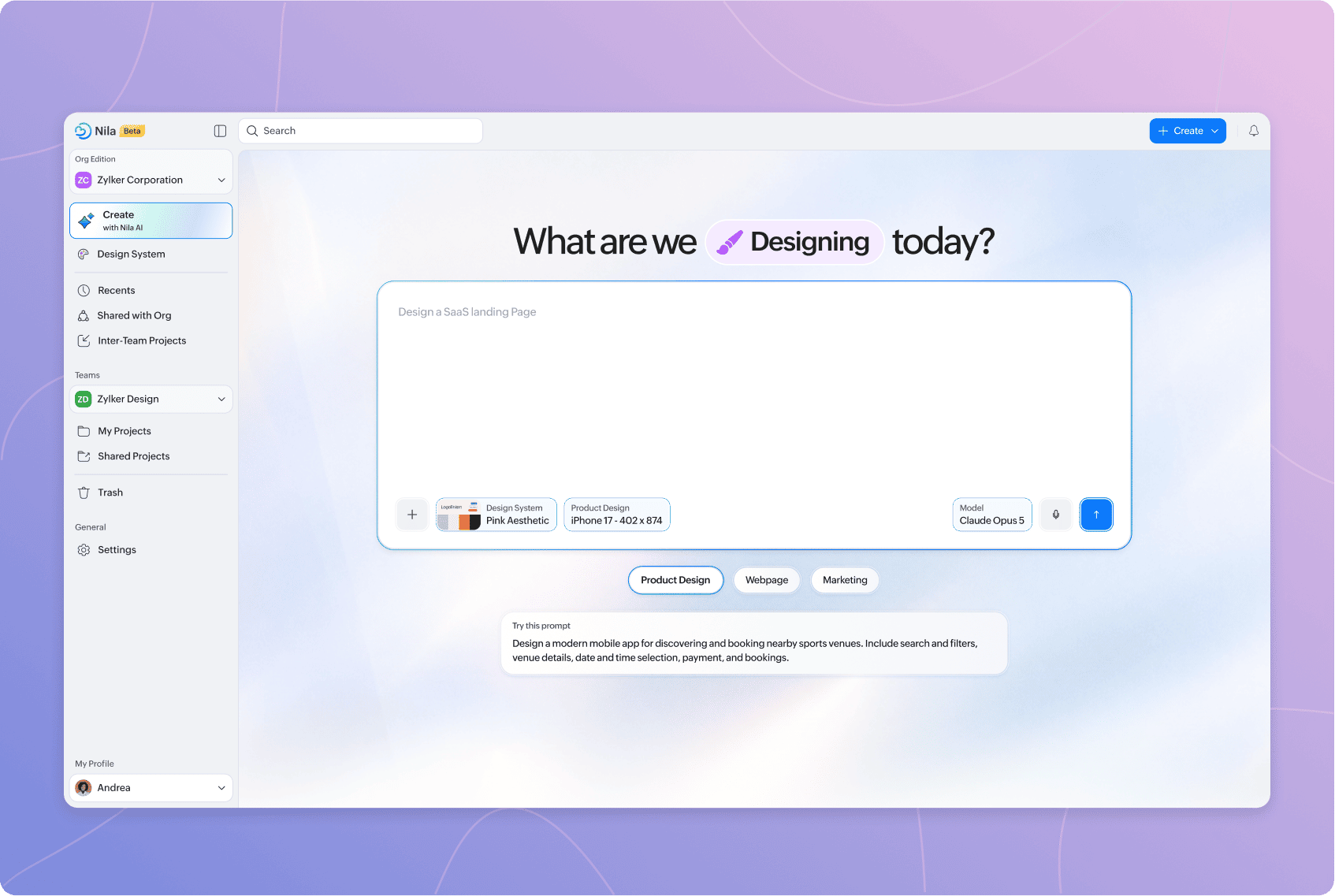
Create a Design
To get started:
Open Create with Nila AI from the left panel.
Select Design at the top of the prompt field.
Choose UI, Webpage, or Marketing.
Enter a prompt describing what you want to create.
Add a Design System, size, or references as needed.
Choose an AI model.
Submit the prompt to generate your design.
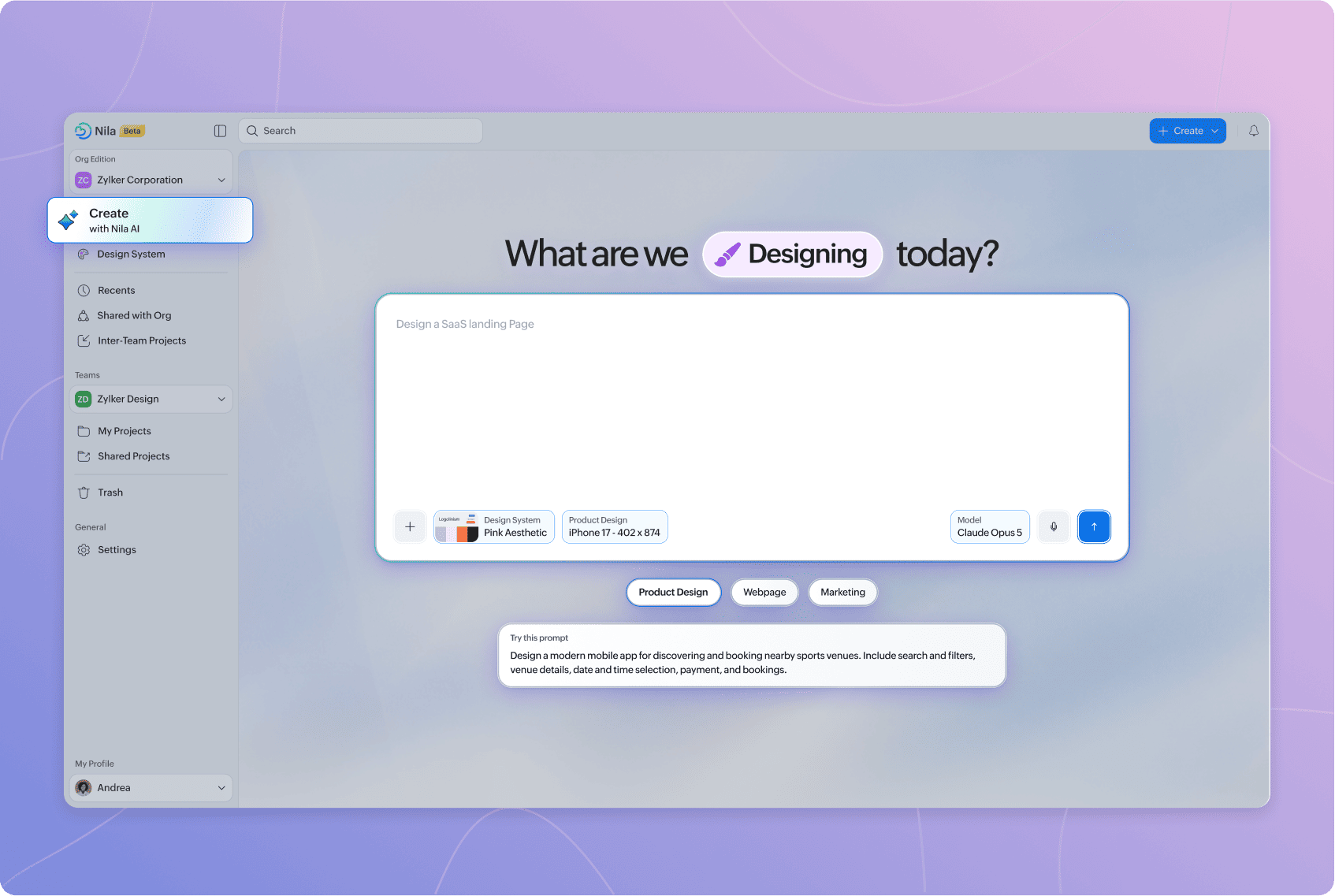
Nila AI uses the prompt and any additional context you've provided to create the design. Once generation begins, the design opens on the canvas with the Nila AI panel alongside it.
From there, you can review the result and continue refining it with follow-up prompts.
Choose What You Want to Design
Before entering your prompt, choose the type of design you want Nila AI to create.
UI:
Choose UI when creating interfaces for apps and digital products.
For UI designs, you can also specify the screen size you want to design for. This helps Nila AI generate the interface at the appropriate dimensions.
Webpage:
Choose Webpage when creating a website or individual web page.
Use your prompt to describe the type of page, sections, content, functionality, and visual direction you want.
Marketing:
Choose Marketing for marketing-focused designs and visual content.
The context and options available in the prompt field may change based on the type of design you select.
Write Your Prompt
Your prompt tells Nila AI what you want to create.
You can keep it simple or provide more detail depending on how specific you want the result to be. A useful prompt can include:
What you're designing.
The screens, pages, or sections you need.
Important features or functionality.
Content that should appear in the design.
The visual style or direction.
Any specific requirements Nila AI should follow.
For example:
Design a modern mobile app for discovering and booking nearby sports venues. Include search and filters, venue details, date and time selection, payment, and bookings.
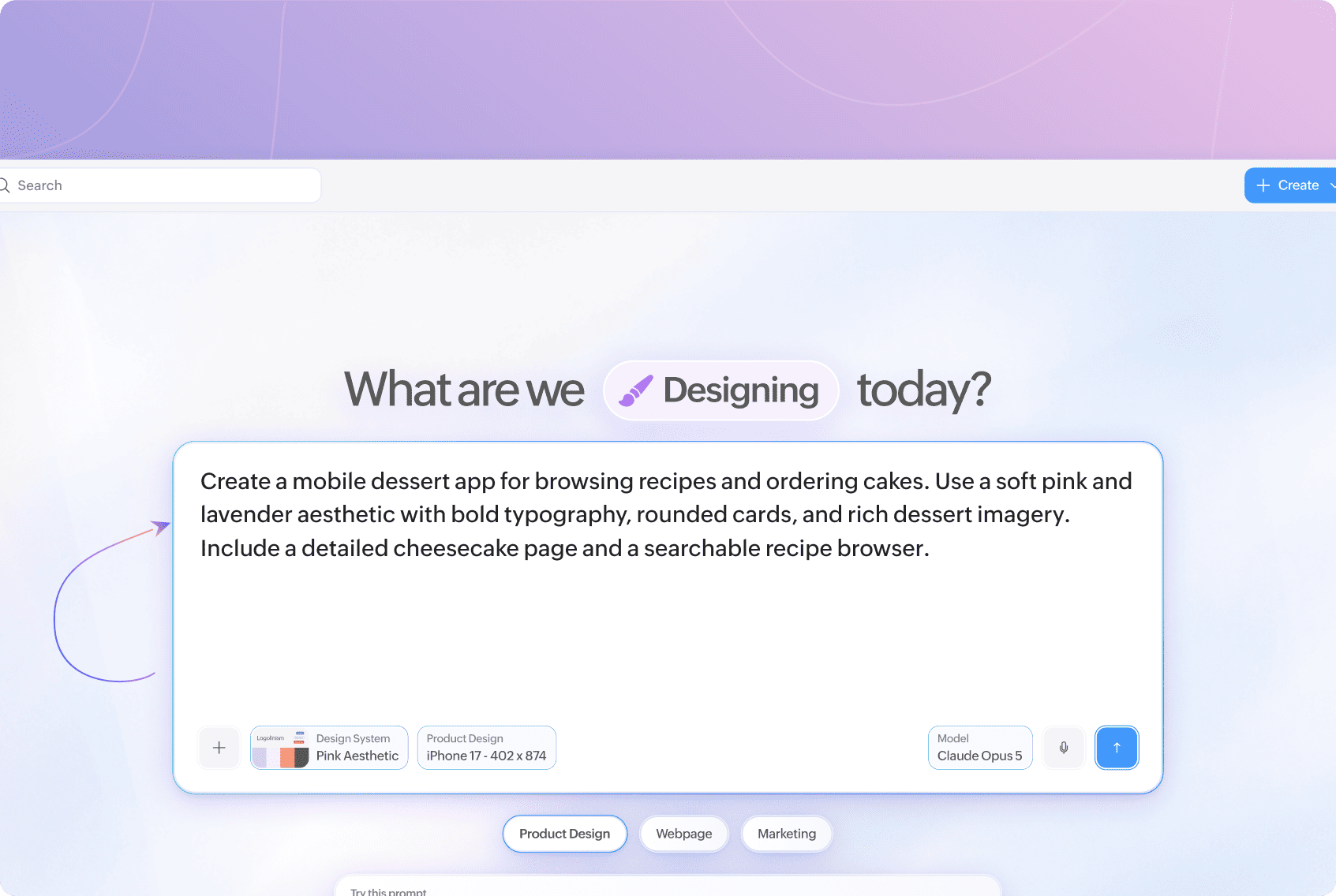
You don't need to describe everything in your first prompt. Start with the main requirements and continue refining the design with follow-up prompts after it is generated.
Add a Design System
You can add a Design System to your prompt to give Nila AI context from the system your team already uses.
The selected design system appears in the prompt field and becomes part of the context Nila AI uses while generating your design.
This helps Nila AI create designs using the components, styles, and design decisions defined by your team instead of generating without that system context.
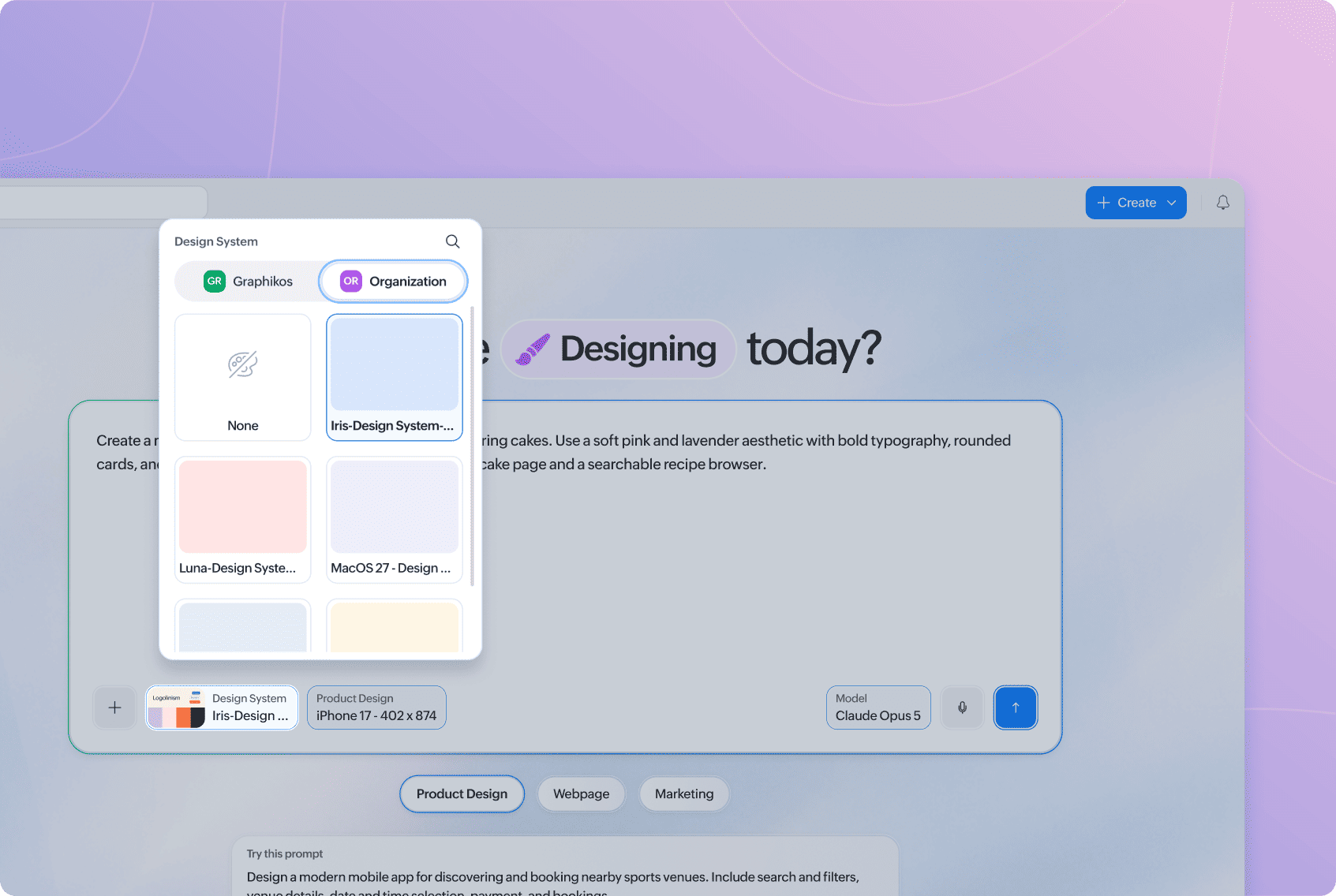
If you don't have a design system yet, you can create one separately with Nila AI. See Create a Design System With Nila AI to learn more.
Choose a Size
When creating a UI design, choose the screen size you want Nila AI to design for.
The selected size appears in the prompt field. For example:
UI · Web · 1440 × 1024
The size gives Nila AI the dimensions of the interface it should generate.
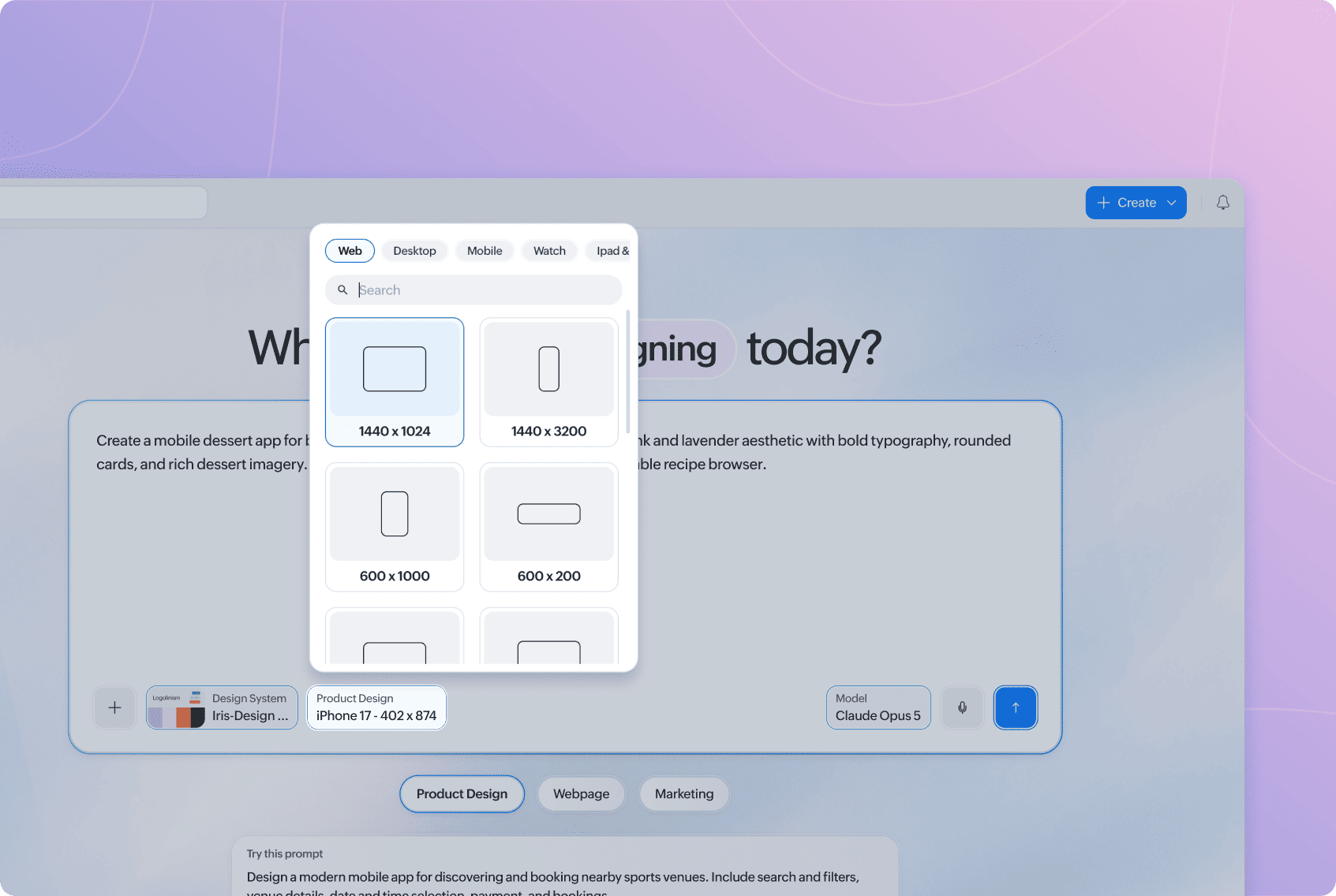
Choose a size that matches the device or format you're designing for. This gives Nila AI the right canvas dimensions before it starts generating the design.
Add References
Use the + icon in the prompt field when you want to provide additional reference material.
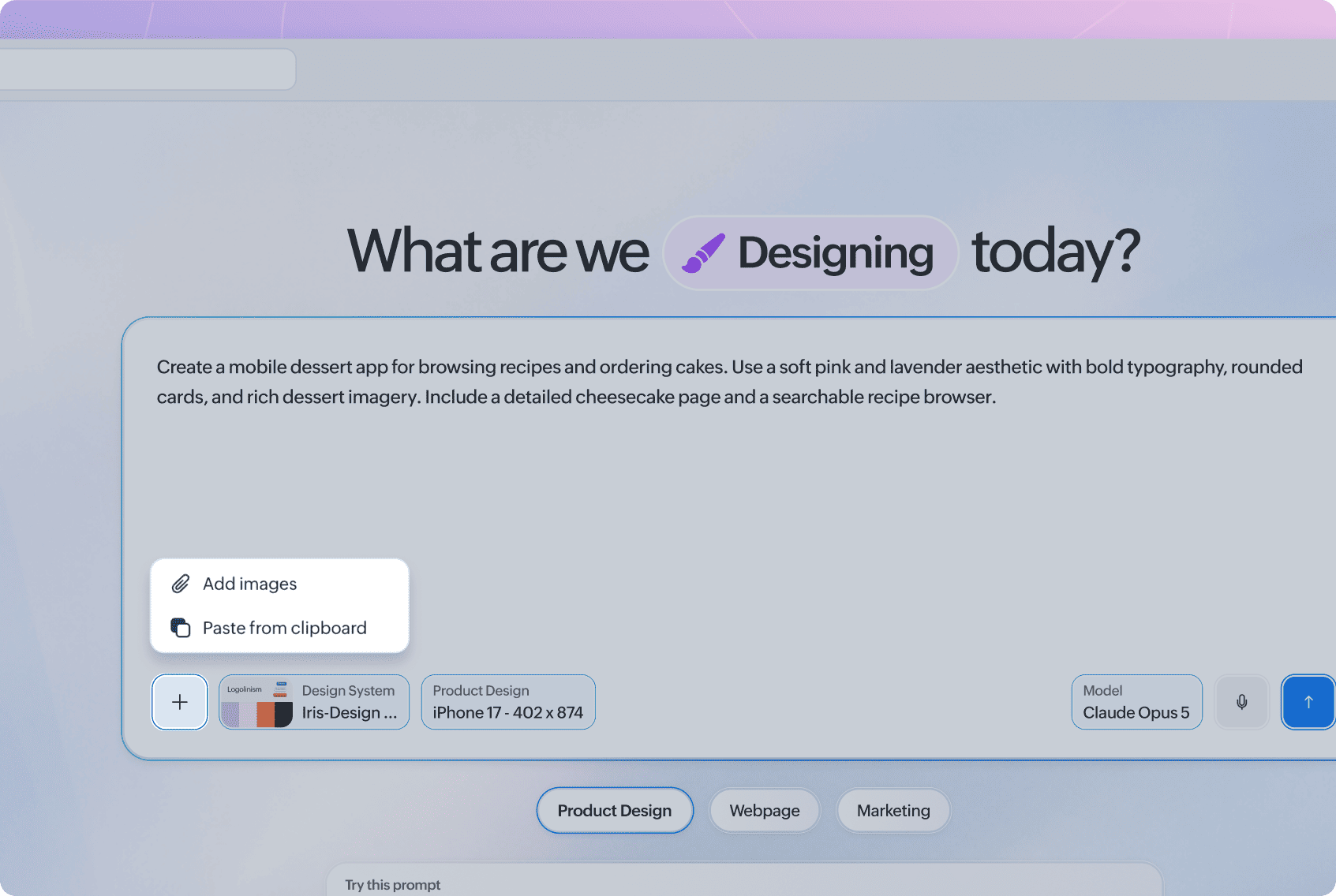
References can give Nila AI more context about what you want to create. For example, you can add an image when you want the generated design to consider an existing visual direction or provide a file containing information relevant to your request.
References are used together with your prompt and other selected context during generation.
Adding references is optional. If your prompt provides enough information, you can generate a design without them.
Choose an AI Model
The Model selector shows the AI model that will be used for your request.
Select it to choose from the AI models available to you.
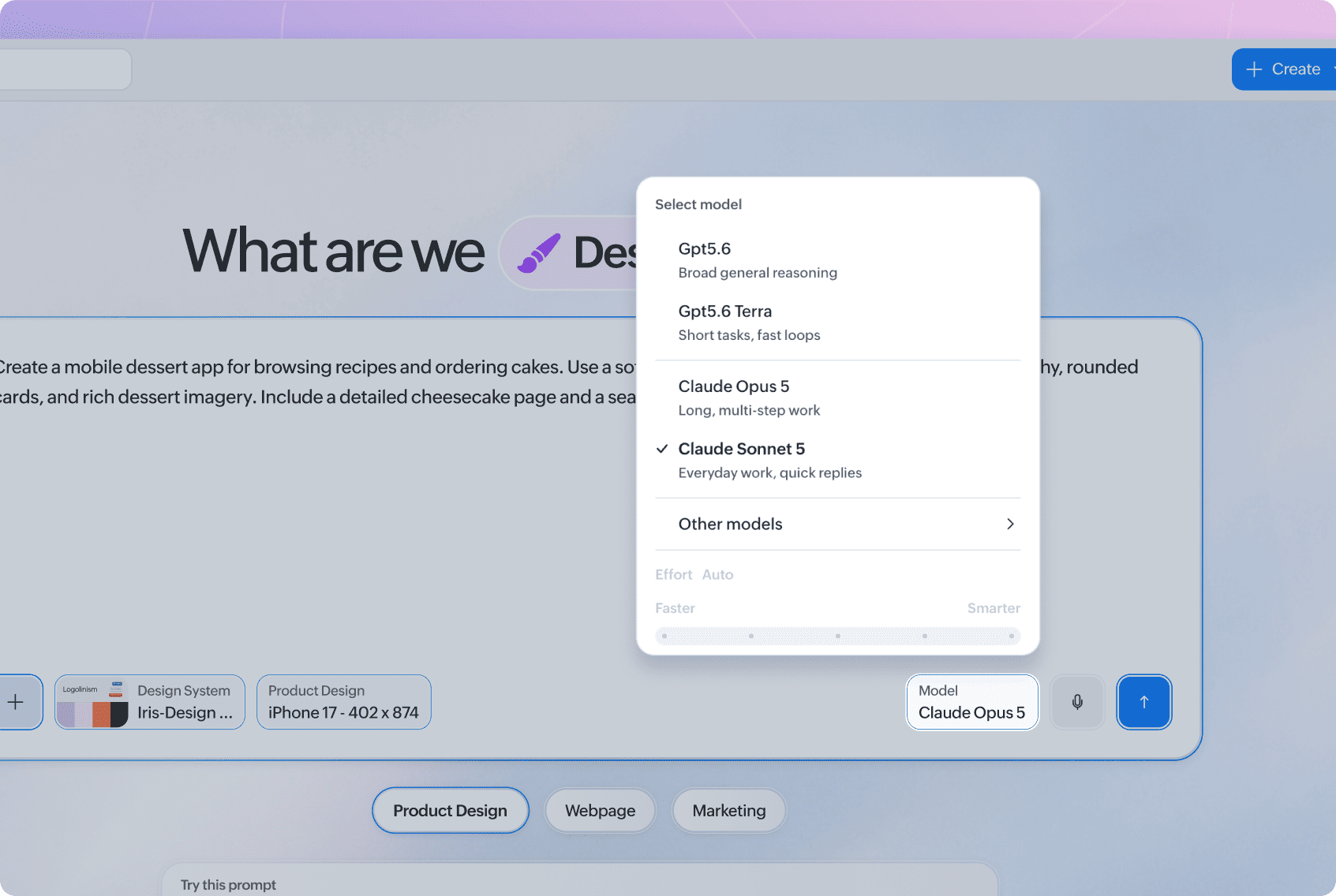
Different models may be better suited to different types of requests. You can choose a model before generating your first design and switch models later when sending follow-up prompts.
Changing the model does not require you to start a new design. You can continue working from the existing Nila AI conversation.
Use Voice Input
You can also provide a prompt using your voice.
Select the microphone icon and speak your request instead of typing it manually.
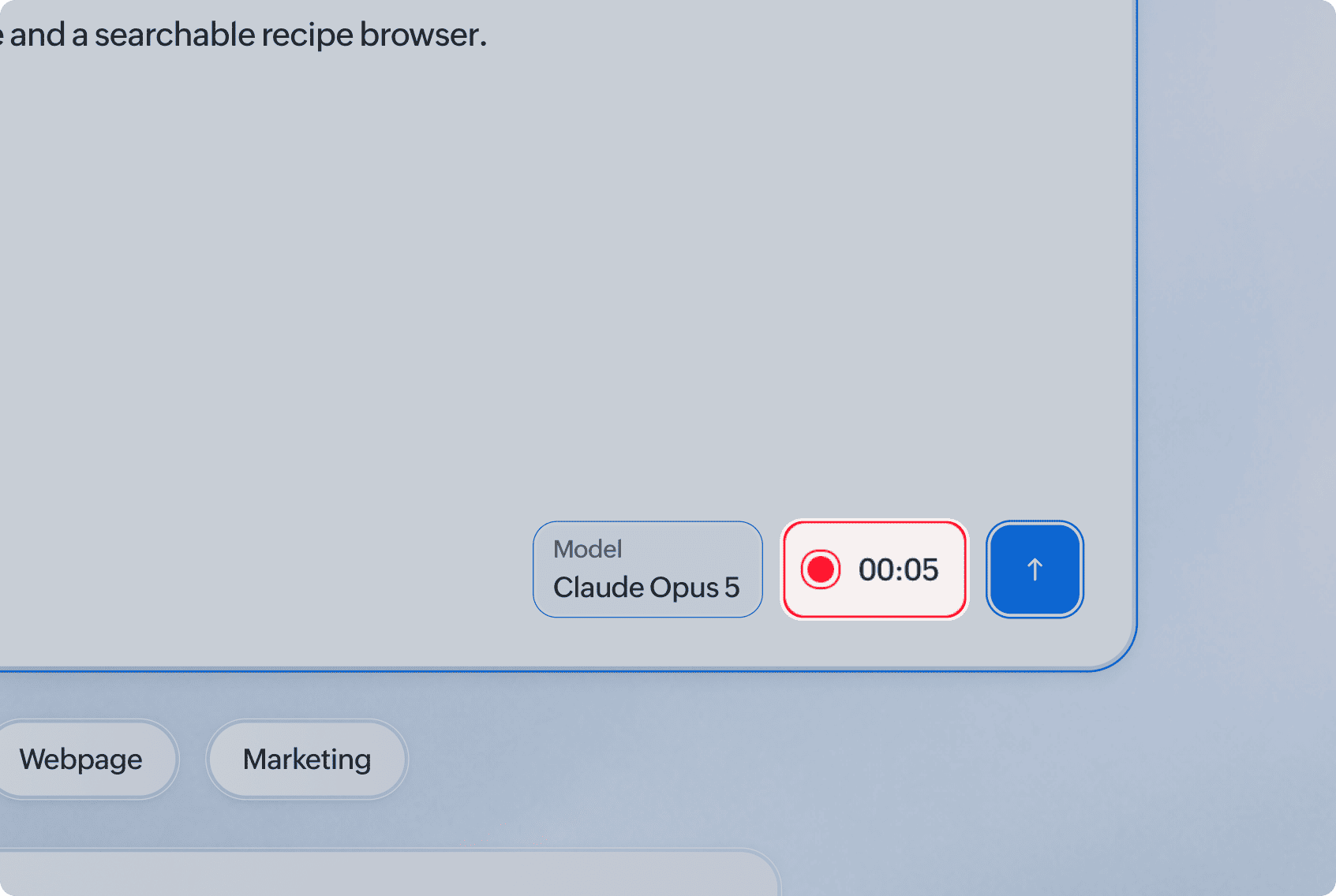
Voice input is useful when you want to describe an idea naturally or provide detailed instructions without typing a longer prompt.
Review the captured prompt before submitting it to make sure it reflects what you want Nila AI to create.
Generate the Design
Once you've added the context you need, submit your prompt.
Nila AI considers the information you've provided, which may include:
Your prompt.
The selected design type.
The selected design system.
Screen size.
Reference images or files.
The selected AI model.
You don't need to provide every type of context for every request. Add only what is relevant to the design you're creating.
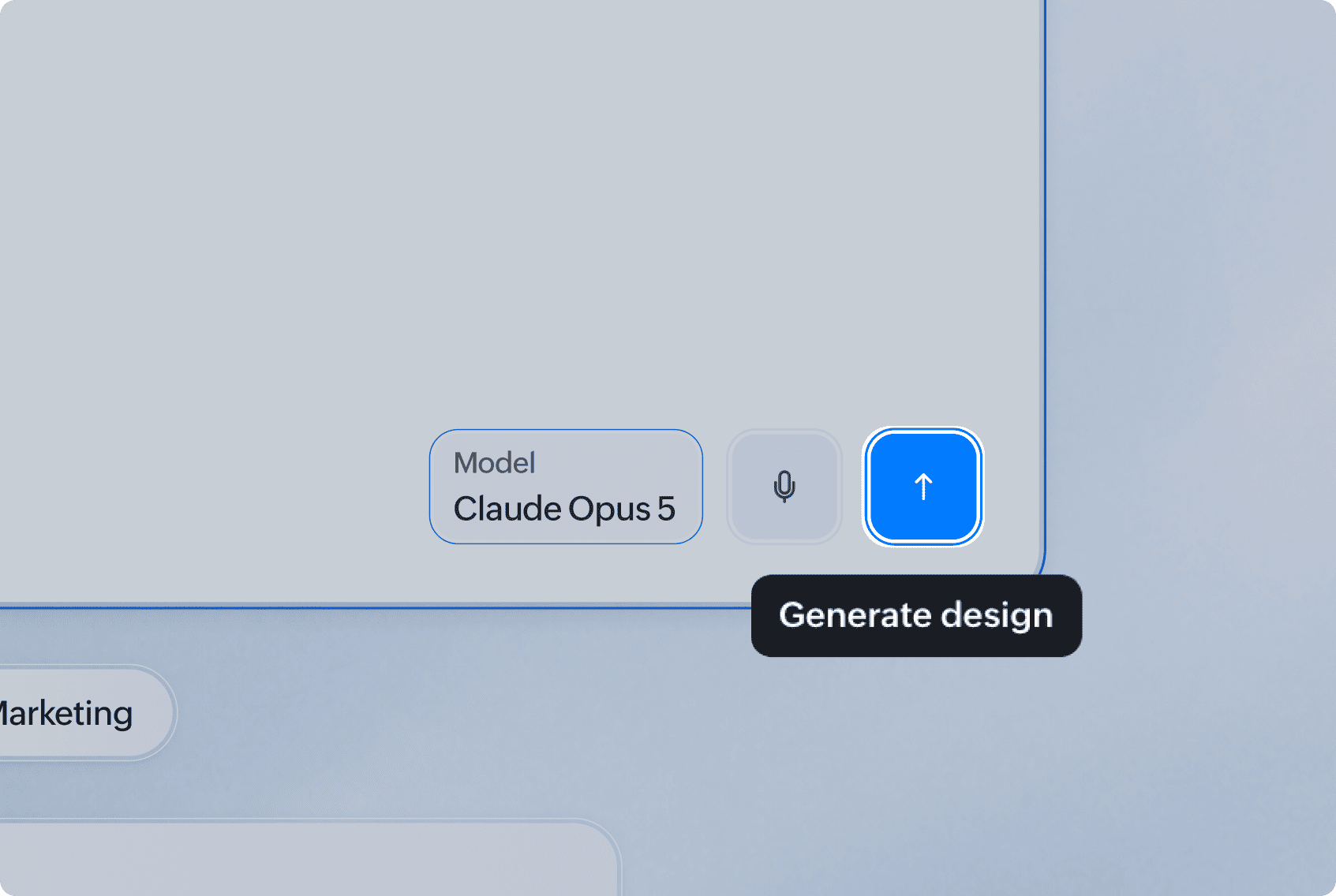
Nila AI then begins generating the design. You can follow its progress from the Nila AI panel while the design is being created.
Once generation is complete, review the result on the canvas and continue working with Nila AI if you want to make changes.
Start From a Suggested Prompt
If you're not sure what to ask Nila AI to create, use one of the suggested prompts shown below the prompt field.
Suggested prompts give you complete examples that you can use as a starting point.
To use one:
Choose the type of design you want to create.
Browse the suggested prompts.
Select a prompt that is close to what you need.
Edit the prompt to match your requirements.
Submit it to generate the design.
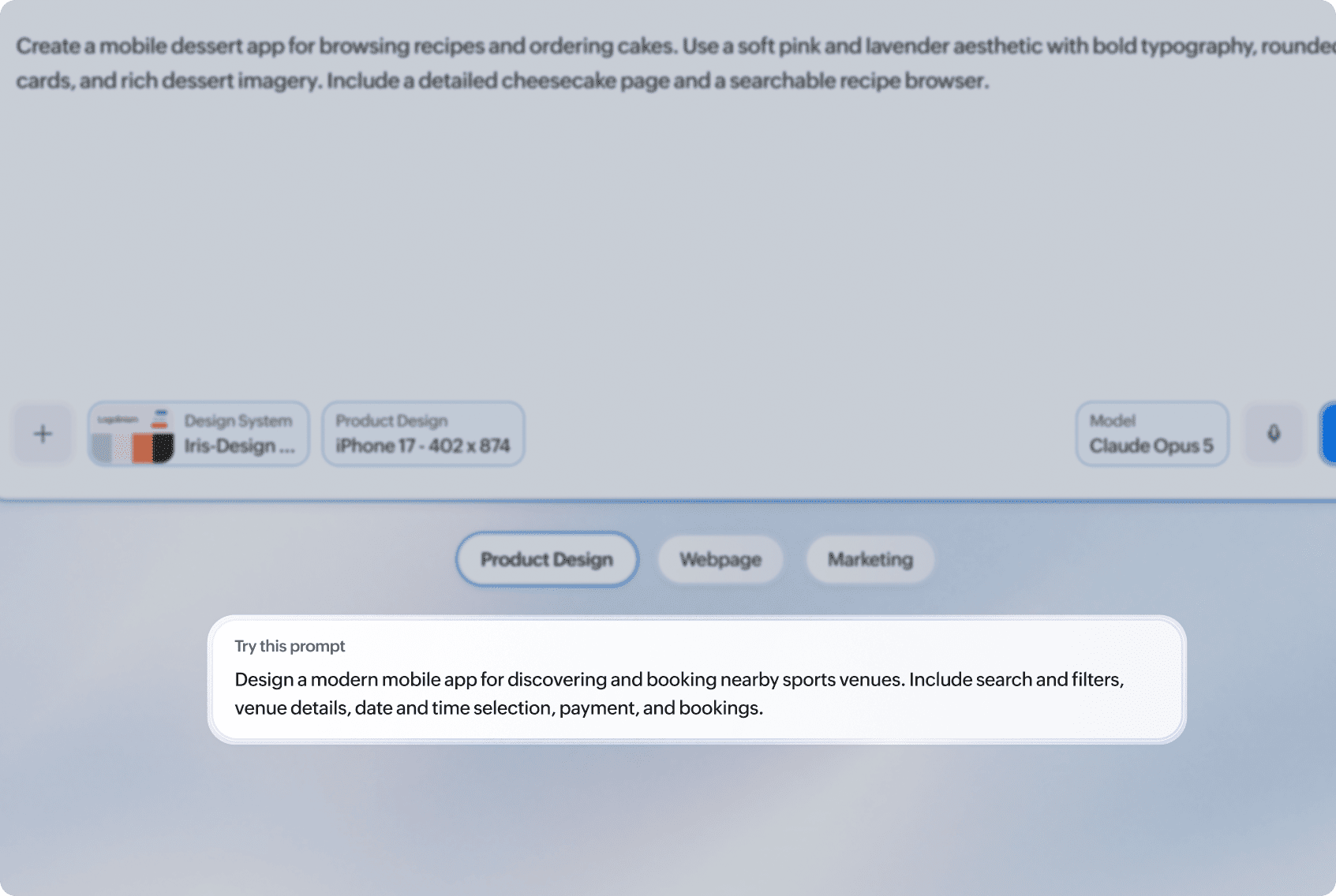
You don't have to use a suggested prompt exactly as provided. Change the product, features, content, or visual direction before generating if needed.
Work With Nila AI on the Canvas
After generation starts, your design opens on the canvas and the Nila AI panel appears alongside it.
The panel keeps your AI conversation connected to the design you're working on. You can see your original prompt, follow the generation progress, and continue sending instructions without returning to the initial creation screen.
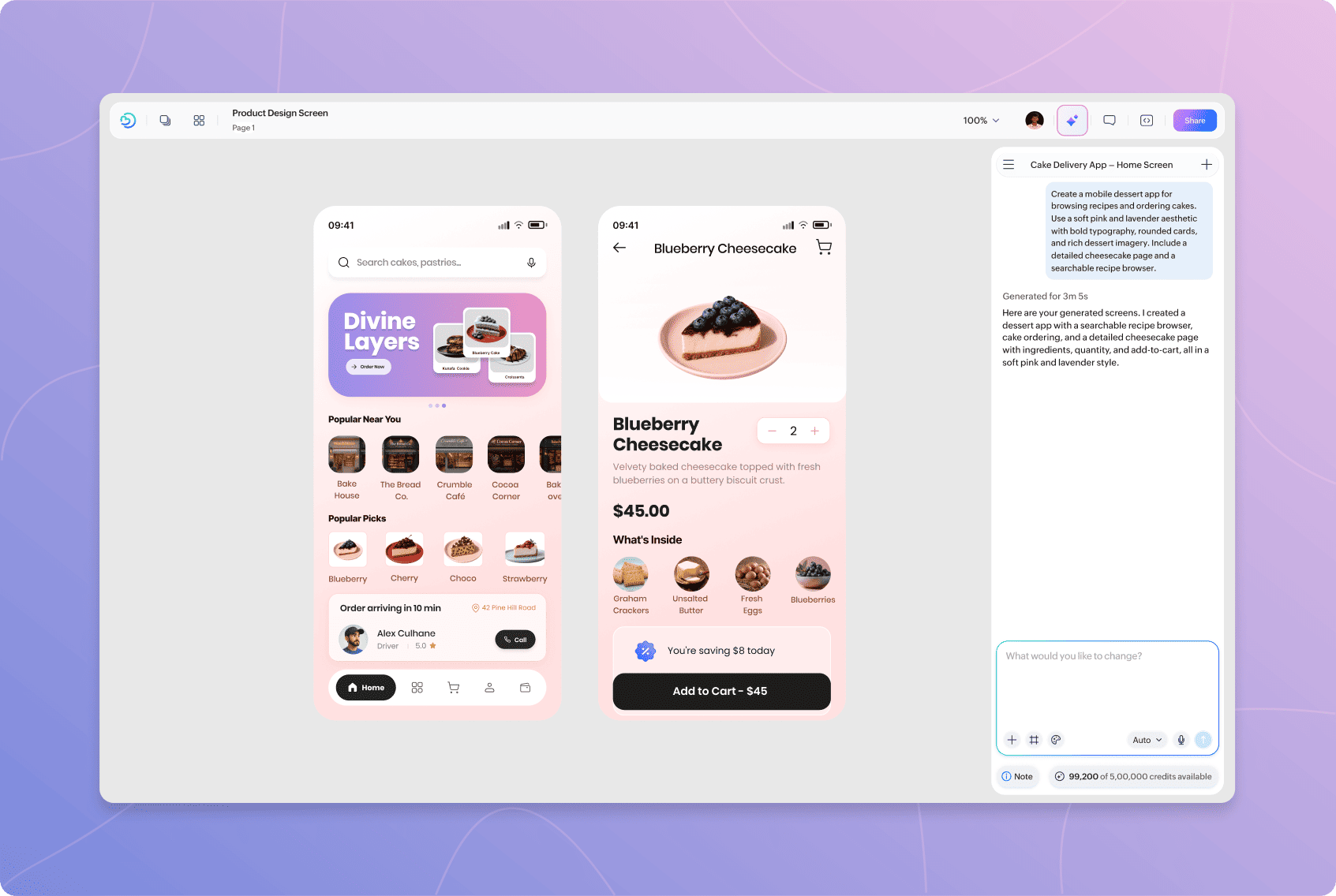
Use the prompt field at the bottom of the panel whenever you want Nila AI to make another change.
You can also add references, use voice input, and choose an AI model while working from the panel.
Refine Your Design With Follow-Up Prompts
You don't need to describe the final design perfectly in your first prompt.
After reviewing the generated result, tell Nila AI what you want to change. Your previous conversation provides context for your follow-up requests, allowing you to build on the design instead of starting again.
For example, you can ask Nila AI to:
Change the layout.
Update or rewrite content.
Explore another visual direction.
Add new sections or elements.
Remove elements you don't need.
Change styling.
Continue developing the design based on your previous instructions.
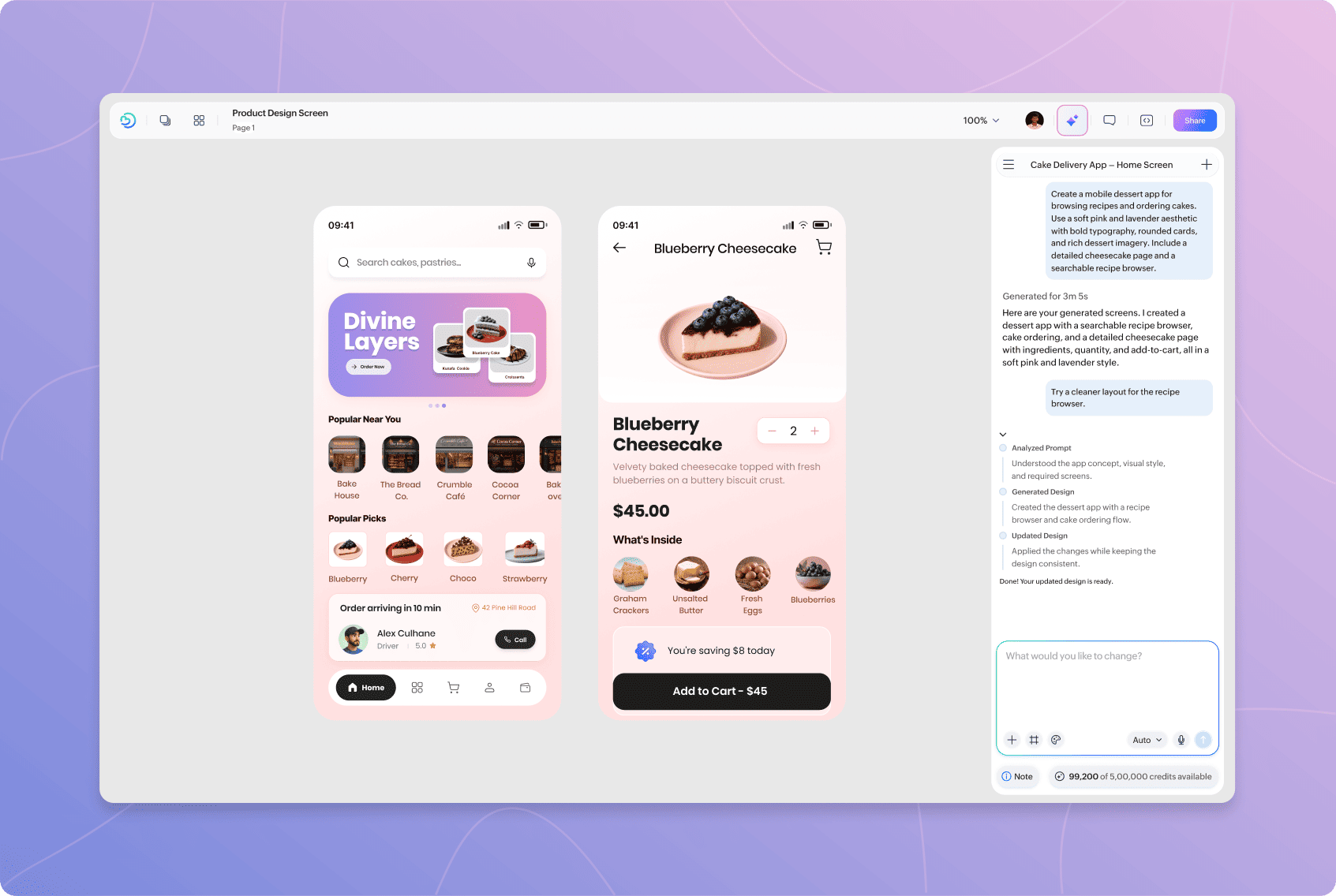
Be specific about what you want changed when possible. Instead of asking Nila AI to make it better, describe the result you want, such as changing the layout, increasing hierarchy, simplifying a section, or adding a particular element.
You can continue sending follow-up prompts until the design matches the direction you need.
Add More Context While Refining
You can provide additional context even after the first design has been generated.
From the Nila AI panel, you can add new references or provide more detailed instructions in subsequent prompts.
This is useful when you want to introduce a new requirement without recreating the design from the beginning.
For example, you might generate the initial interface first and then provide a reference image or additional requirements in a later prompt.
Switch AI Models While You Work
You can change the AI model while refining a design.
Use the Model selector in the Nila AI panel and choose another available model before sending your next prompt.
Your existing conversation and design remain available, allowing you to continue working on the same design with the newly selected model.
Follow Generation Progress
When Nila AI is processing a request, its status appears in the Nila AI panel.
This lets you see when Nila AI is working on your request and follow the generation as it progresses.
For each request, you can also see information such as the generation time and credits used.
Once generation is complete, review the changes on the canvas before sending your next prompt.
How Nila AI Uses Context
Nila AI can use several sources of context when creating and refining a design.
Your prompt provides the instructions for what you want to create or change.
Your design type and size provide context about the format and dimensions you're designing for.
Your design system gives Nila AI access to the design language and reusable resources you want it to work with.
Your references provide additional visual or supporting context.
Your previous prompts provide conversational context as you continue refining the design.
Together, these help Nila AI understand both what you're creating and how you want it to be created.
Found this helpful?

Can't find what you need?
Try refining your search or explore our Help Center
