
Grab Production-Ready Code
Designs in Nila are backed by production-ready code. As you create and refine a design, its code stays connected to those changes, so developers can work from the latest design without rebuilding it from scratch.
In the Dev panel, open the Code tab to view the generated code, switch between supported web, mobile, and desktop, copy individual files, or download the code for a board or the complete design.
Along with code, developers can use Inspect to review design properties and Assets to download the visual resources they need for implementation.
Access Production-Ready Code
Every design you create in Nila has code behind it.
When you refine the design—whether you're changing its layout, content, styling, or other elements—the generated code updates along with the design. This keeps the visual design and its implementation connected as the design evolves.
Open Code to access the latest generated code for the design.
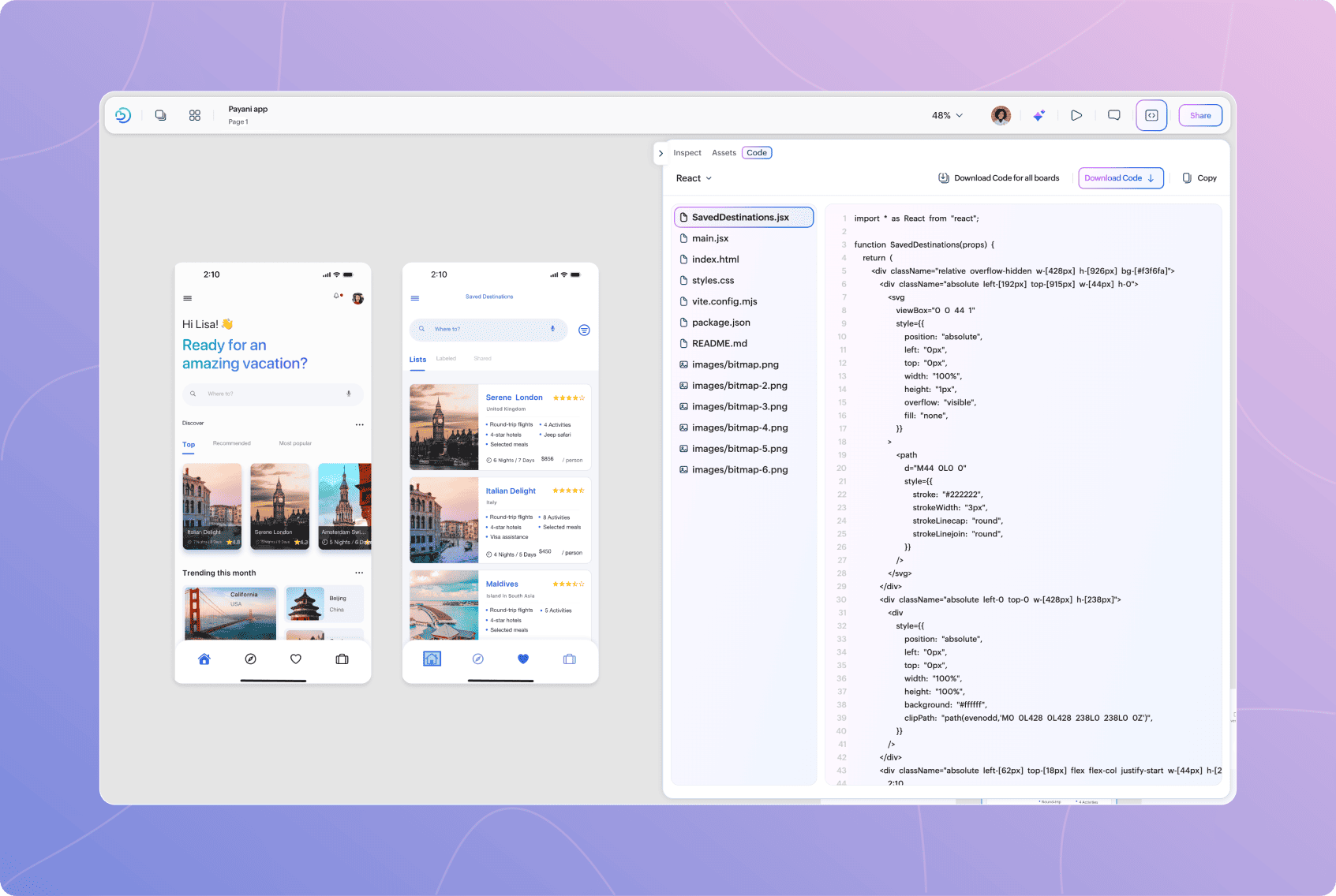
The Code panel includes:
A code format selector for choosing the technology you want to work with.
A file list containing the generated project files.
A code viewer for reviewing individual files.
Options to copy or download the generated code.
Choose the Code You Need
Nila lets you view the same design as code for different web, mobile, and desktop technologies.
Open View code as and choose the option that matches what you're building.
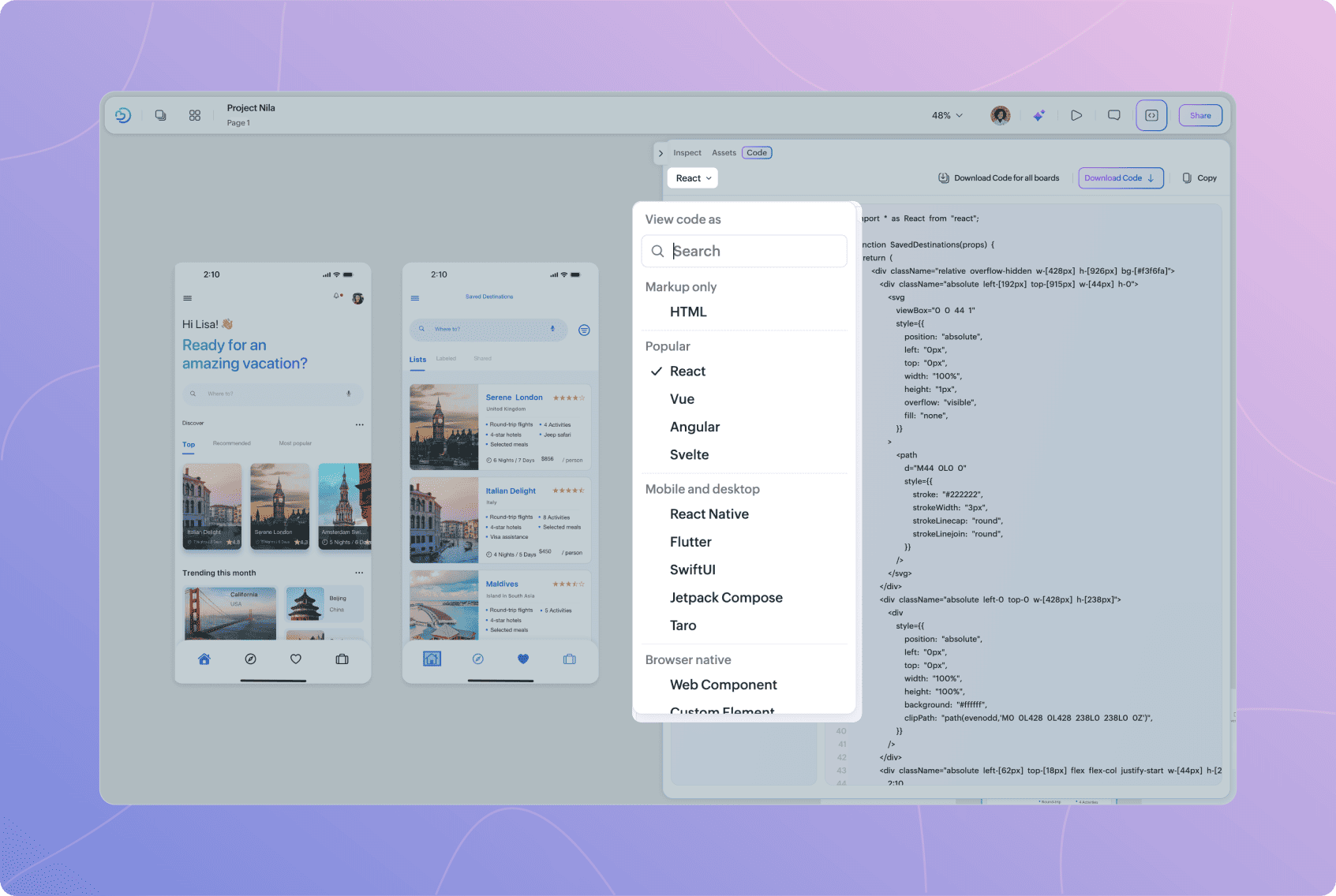
Use Search to quickly find the option you need.
When you select a different option, Nila generates the code for that technology from the same design. This lets you work with the implementation format that fits your product without creating a separate design for each platform.
Browse Generated Files
Once you've selected a code format, the generated project files appear in the file list.
Depending on the option you've chosen, the project can include source files, stylesheets, configuration files, package information, and other files needed for implementation.
For example, a React project can include files such as:
main.jsx
index.html
styles.css
package.json
Configuration files
README files
Select any file to view its contents in the code viewer.
The exact files and project structure vary depending on the option you've selected and the design being generated.
Keep Code in Sync as the Design Changes
You don't need to generate a separate code every time the design changes.
As the design is refined in Nila, the code behind it updates to reflect the generated changes. Open Code at any point to access the latest implementation for the design.
This means designers can continue refining the experience while developers work from code that stays connected to the current design.
If you switch to another supported code format, Nila uses the same current design to provide the corresponding implementation.
Copy Code
Use Copy when you need the code from the file currently open in the code viewer.
To copy code:
Open Code.
Choose the code format you need.
Select a file from the file list.
Select Copy.
Paste the code into your development environment.
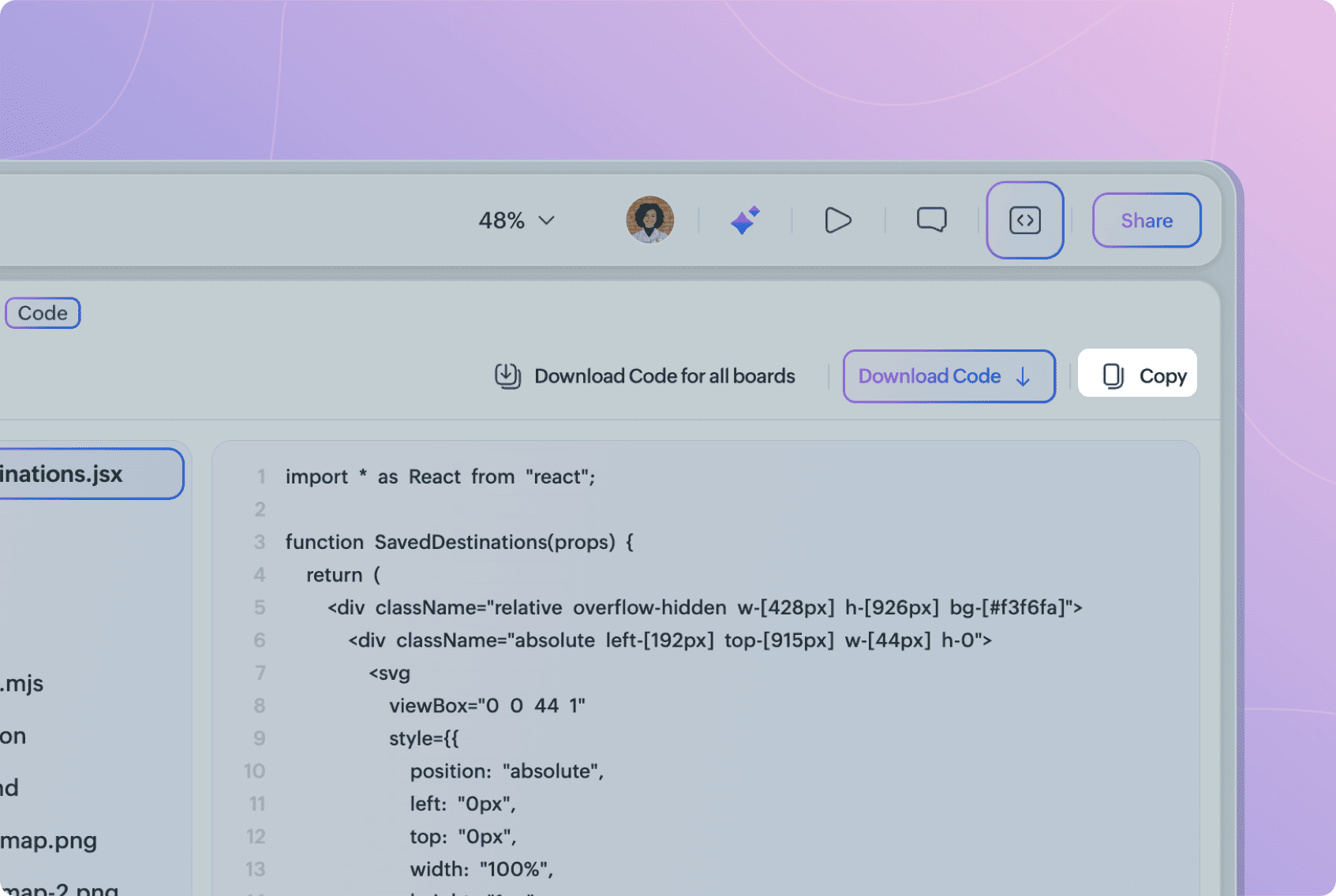
This is useful when you only need a particular file or section of the generated project.
Download Code
You can also download the generated code as files and continue working with it in your development environment.
Choose the code format you need, then select one of the available download options:
Download Code — Download the generated code for the current board.
Download Code for All Boards — Download the generated code for all boards in the design.
Use Download Code when you're implementing a particular screen or board.
Use Download Code for all boards when you need the generated implementation for the complete set of boards, such as when you're building an entire product flow.
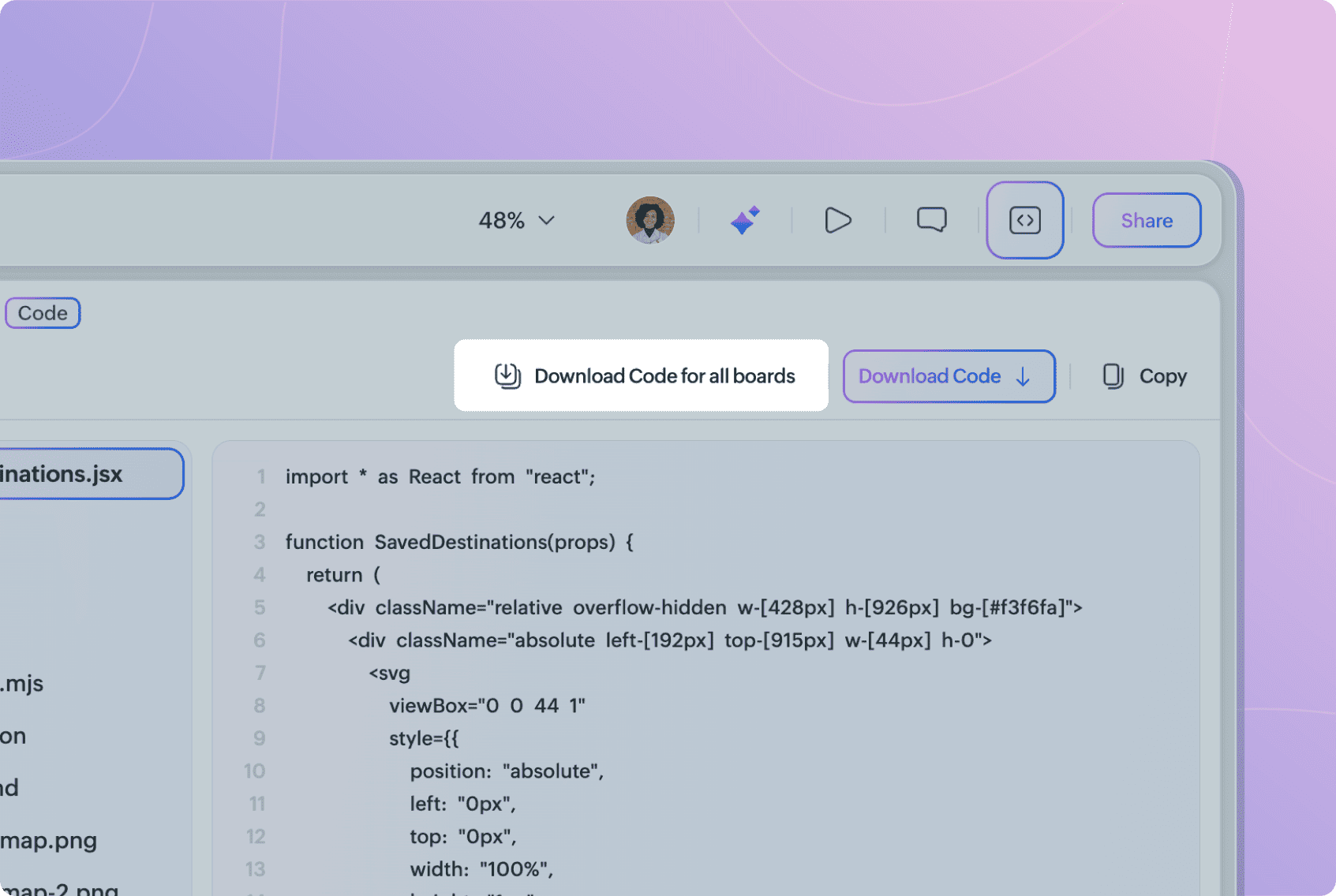
Make sure you've selected the code format you need before downloading.
Inspect Design Properties
Use Inspect when you need to understand the measurements and visual properties behind a design.
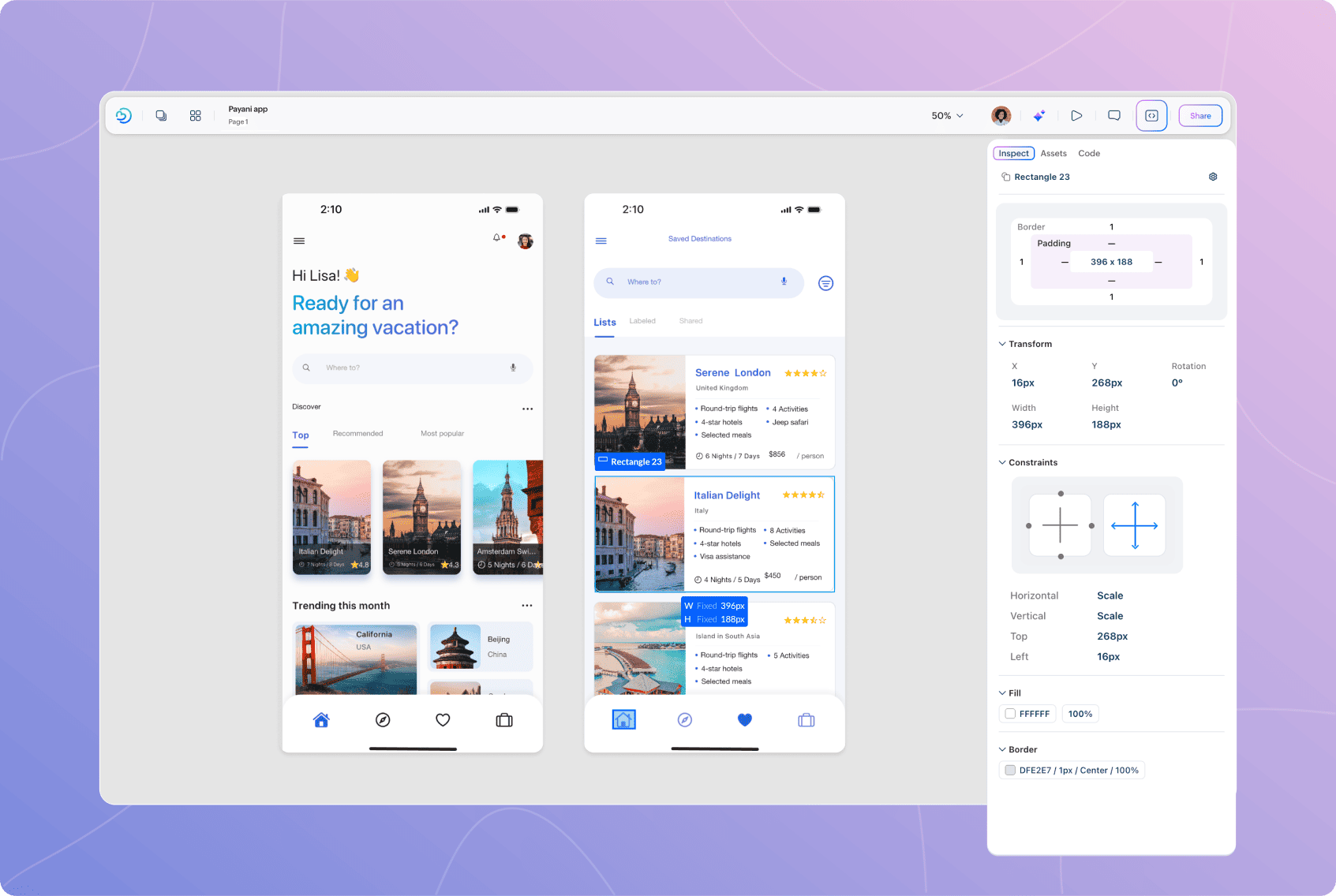
Select a board or element on the canvas and open Inspect. The information shown in the panel updates based on your selection.
Review Layout and Spacing
The layout preview provides a visual representation of the selected element's dimensions and spacing.
Depending on your selection, you can review information such as:
Width and height.
Padding.
Border values.
This helps developers understand the spacing and structure used in the design without measuring elements manually.
Review Transform Properties
Expand Transform to view the position and dimensions of the selected element.
You can review:
X — Horizontal position.
Y — Vertical position.
Width — Width of the element.
Height — Height of the element.
Rotation — Rotation applied to the element.
Review Visual Properties
Inspect also displays visual properties applied to the selected element.
For example, expand Fill to review its fill type and opacity.
The properties available in Inspect change depending on the element you've selected and the properties applied to it.
Download Assets
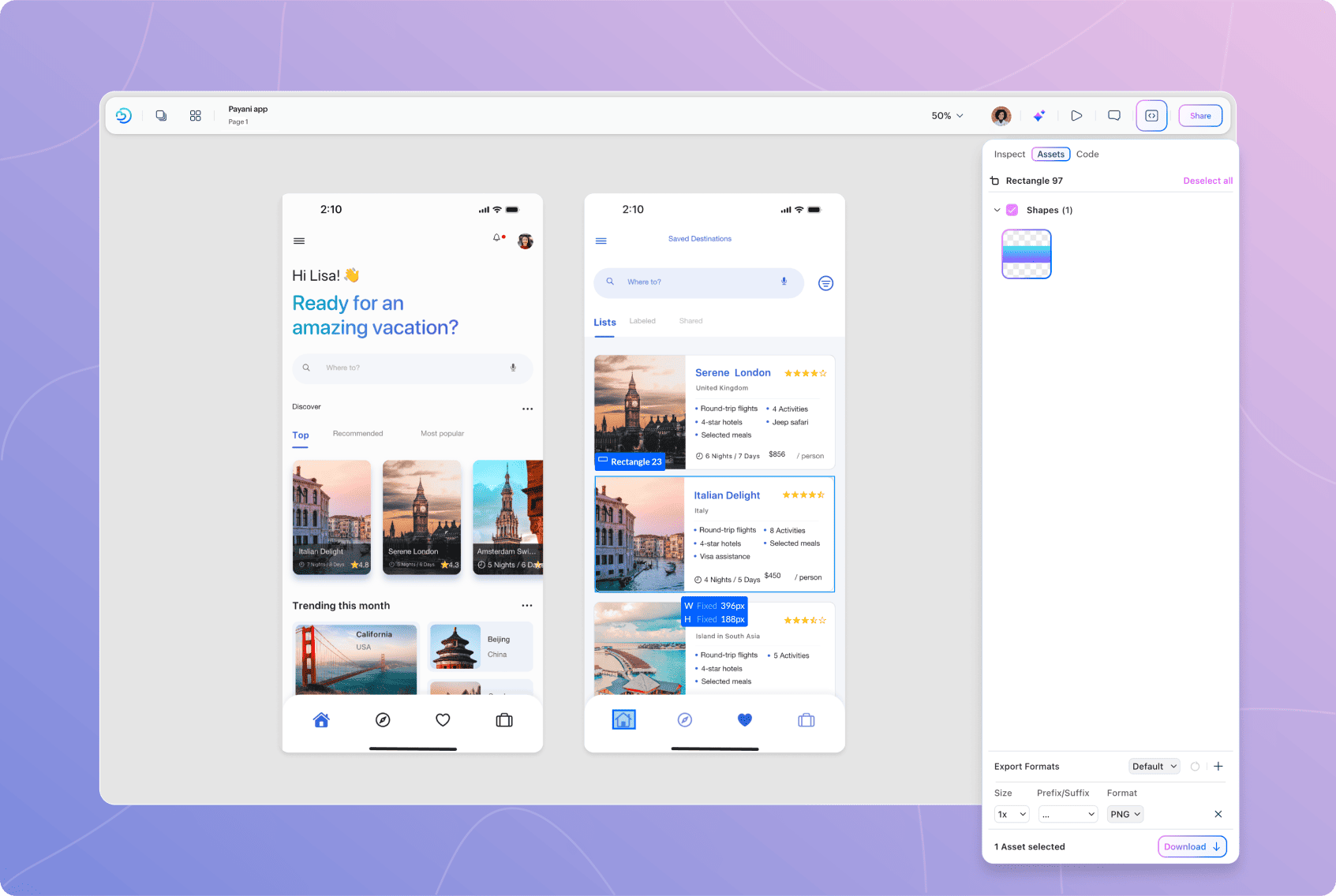
Use Assets to export visual resources from your design for use during development.
Assets are organized into categories such as Boards and Groups, making it easier to find and download only the resources you need.
Select Assets
To select assets:
Open Assets.
Expand Boards or Groups.
Select the assets you want to export.
You can select individual assets or an entire category. Nila displays the total number of selected assets at the bottom of the panel.
Select Deselect all to clear your current selection.
Configure Export Settings
Before downloading, use Export Formats to choose how the selected assets should be exported.
You can configure:
Size — Choose the scale for the exported asset.
Prefix/Suffix — Add a prefix or suffix to the exported file name.
Format — Choose the file format for the exported asset.
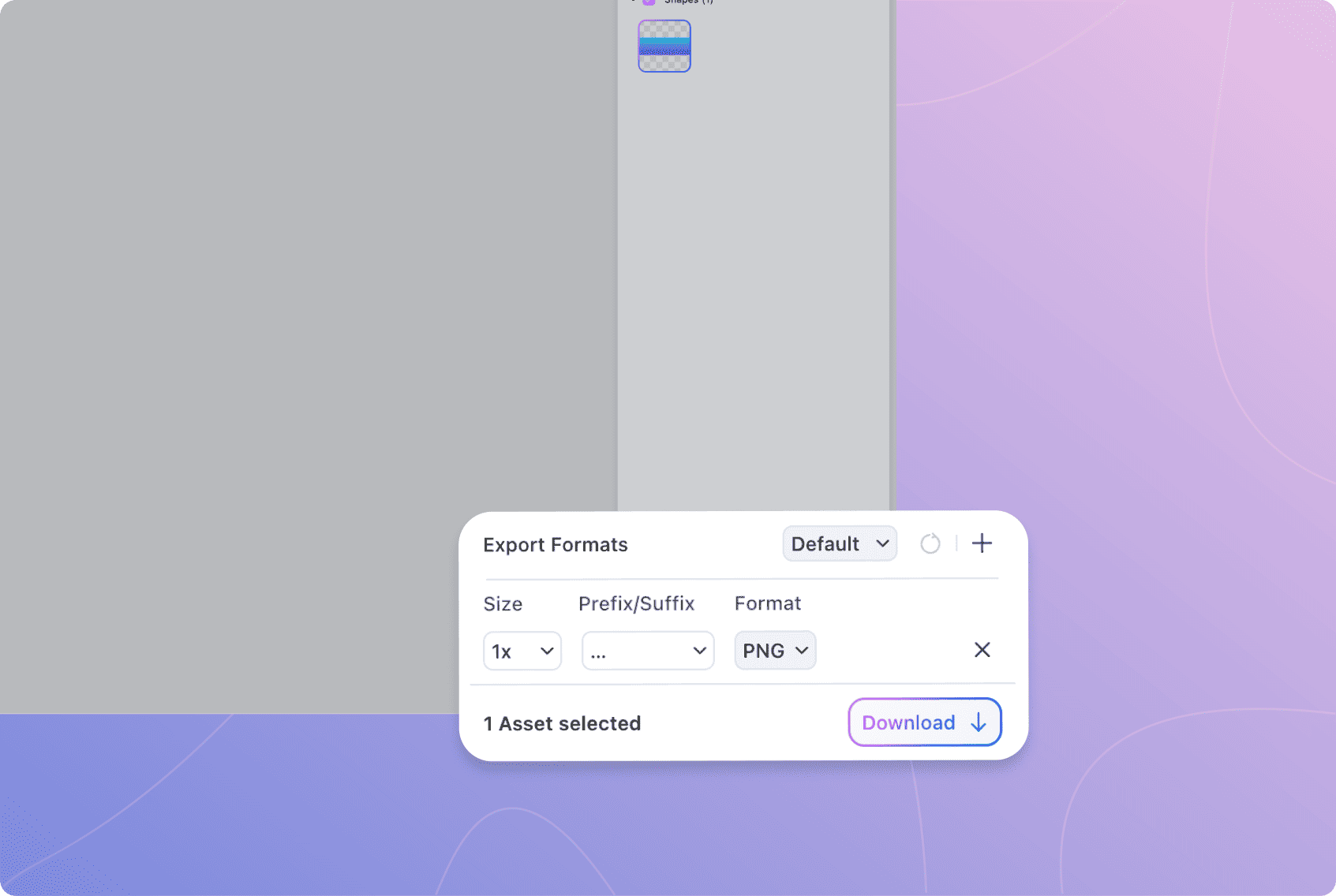
Select the + icon when you need to add another export configuration. This lets you export the same assets in multiple sizes or formats.
Once you've selected the assets and configured their export settings, select Download.
Take Your Design Into Development
Nila keeps the design, its implementation, and the resources developers need connected throughout the process.
Use Code to access the latest production-ready implementation in the technology you need, Inspect to understand the design properties behind it, and Assets to download the visual resources required for development.
As the design evolves, its code evolves with it—keeping design, code, and AI in sync from creation through development.
Found this helpful?

Can't find what you need?
Try refining your search or explore our Help Center
