
Set Up Your Design System
Nila AI helps you set up a design system from a prompt. Describe the product you're designing for and the foundations, components, patterns, and guidelines you need, and Nila AI builds a system you can continue refining with follow-up prompts.
Your design systems are available from the Design Systems section in Nila, where you can access systems available to your team or organization and create new ones with Nila AI.
Set Up a Design System
You can start a new design system from the Design Systems section or directly from Create with Nila AI.
From Design Systems
Open Design Systems from the left panel.
Choose where you want to set up your design system:
Team — View and create design systems within the selected team.
Org — View and create design systems available across your organization.
Select Create new Design system with Nila AI.
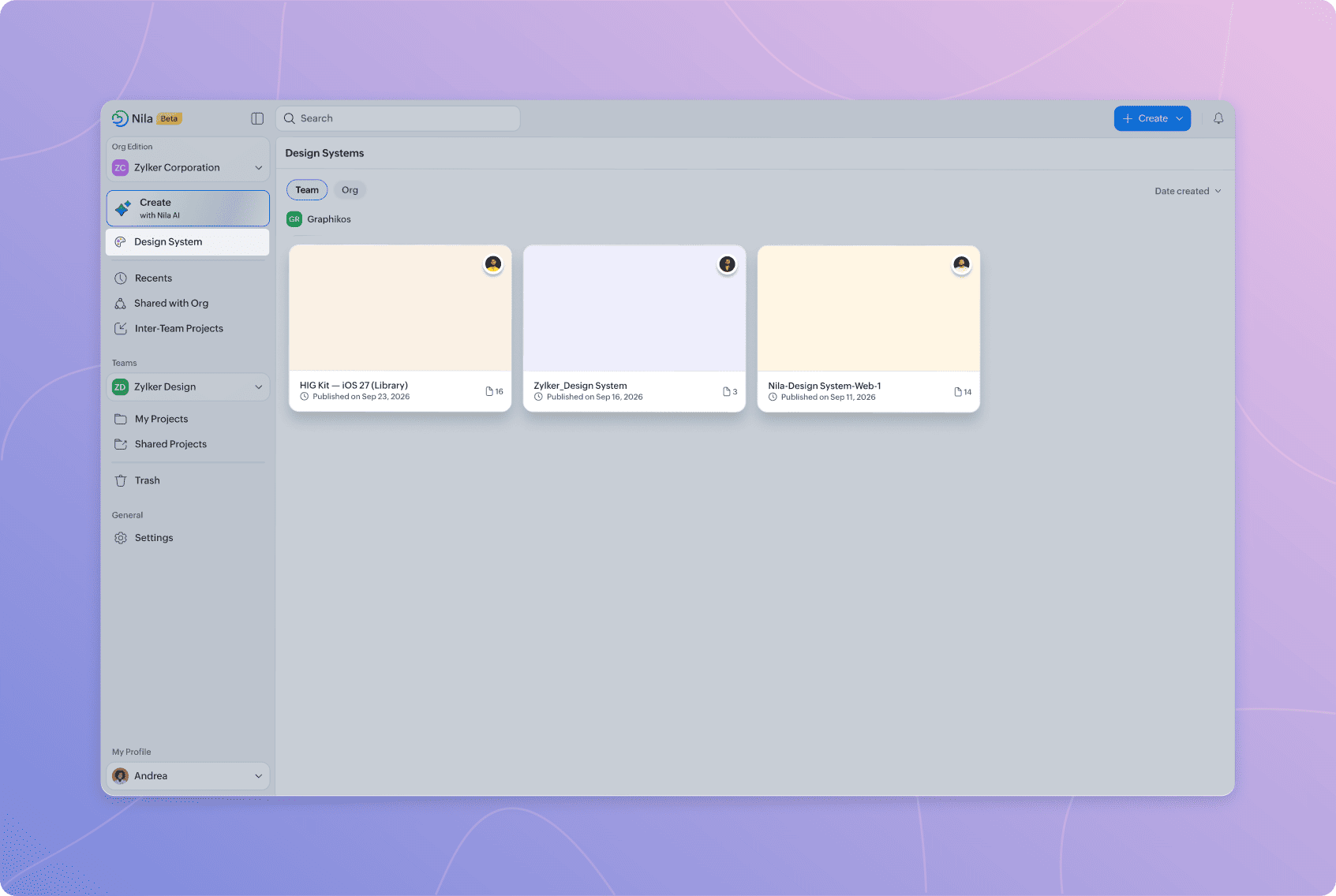
The Design Systems section is also where you can find and open existing design systems available to your team or organization.
From Create with Nila AI
Open Create with Nila AI from the left panel.
Select Design system.
Select UI.
Both options open the Nila AI creation flow, where you can describe the design system you want to build and provide additional context before generating it.
Write Your Prompt
Enter a prompt describing the design system you want Nila AI to create.
Start with the type of product or experience you're designing for, then describe the foundations, components, patterns, and states the system should support.
For example:
Create a marketplace design system with foundations, product cards, seller profiles, ratings, search, filters, checkout, navigation, and status components.
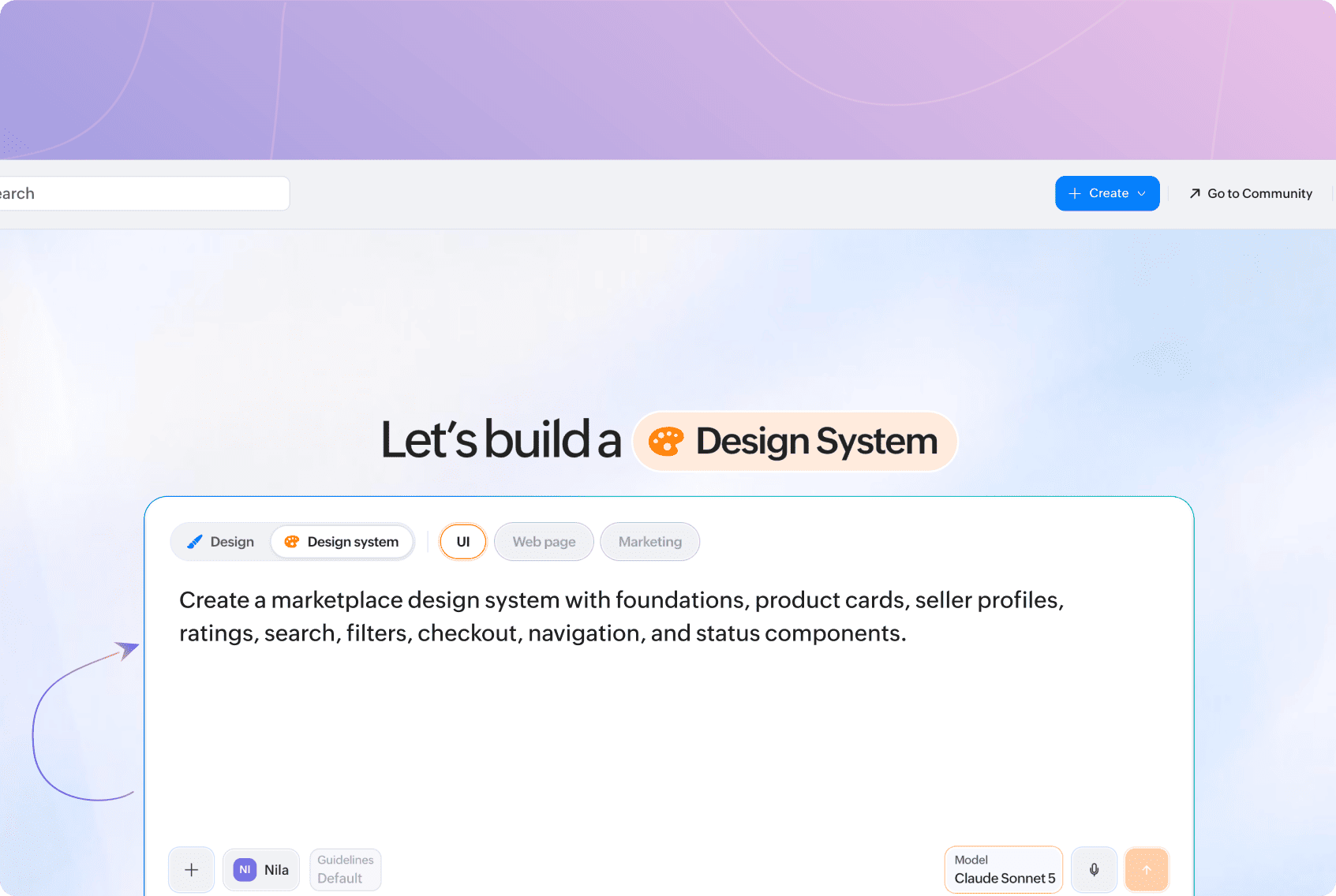
Your prompt can include:
Product context: The type of app, product, or experience the design system is for.
Foundations: Colors, typography, spacing, and other visual foundations.
Components: Buttons, inputs, cards, forms, navigation, and other reusable interface elements.
Patterns: Common interface patterns or product-specific experiences the system should support.
States: The different states your components and interfaces need.
Accessibility requirements: Accessibility considerations you want the system to follow.
Visual direction: The overall look and characteristics you want the system to have.
You don't need to define the entire system in your first prompt. Start with the requirements you know and continue developing the system with follow-up prompts.
Add Guidelines
Guidelines give Nila AI additional direction for creating your design system.
The selected Guidelines appear in the prompt field and are included as context along with your prompt.
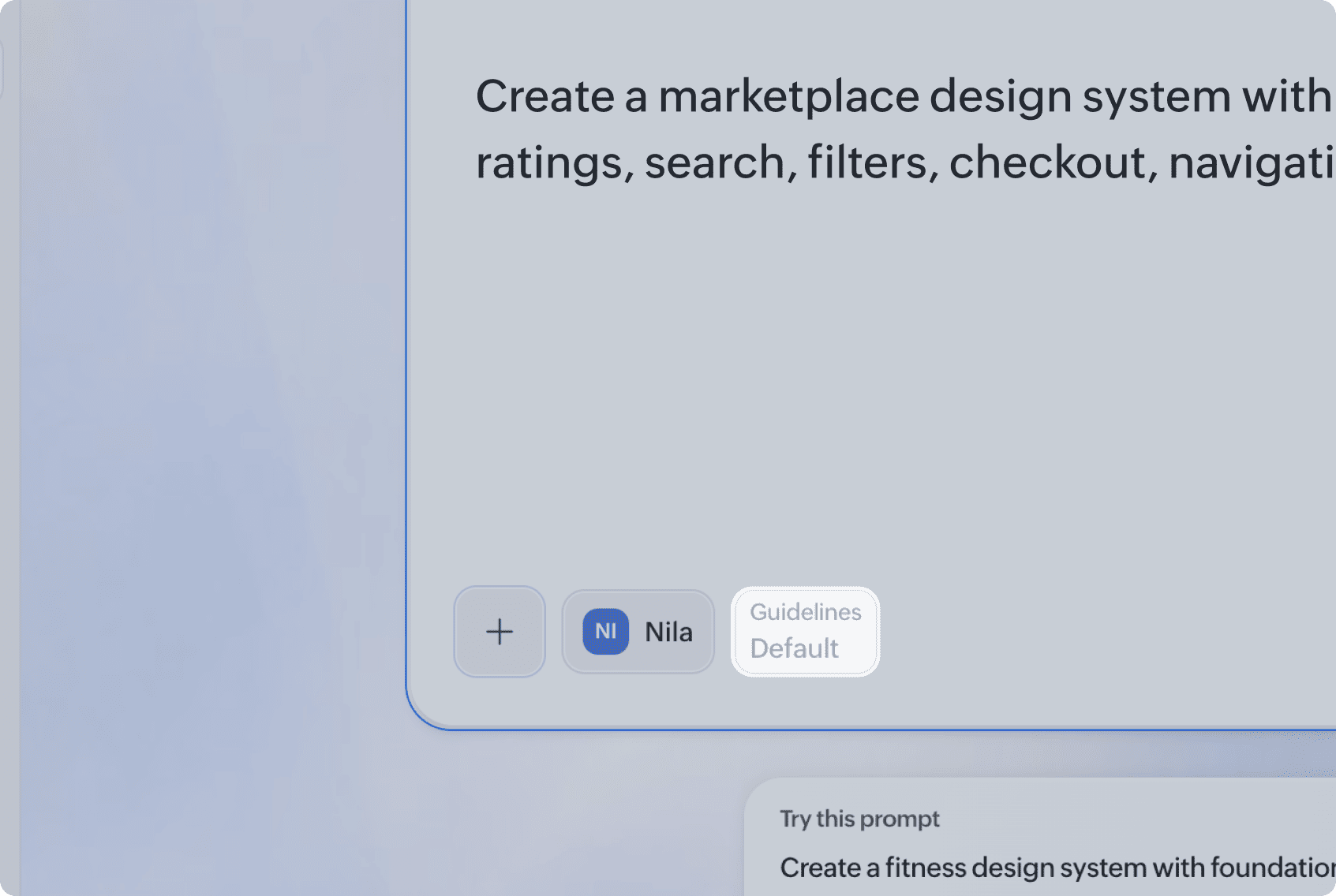
If Default guidelines are selected, Nila AI uses them when generating your design system. You can choose from the available guidelines to give Nila AI a consistent set of rules to follow as it creates and refines the system.
Add References
Select the + icon to add reference images or files to your prompt.
References give Nila AI additional context from existing visuals, product material, or other information relevant to the design system you're creating.
For example, when setting up a design system for an existing product, you can add references to help Nila AI understand its current visual direction.
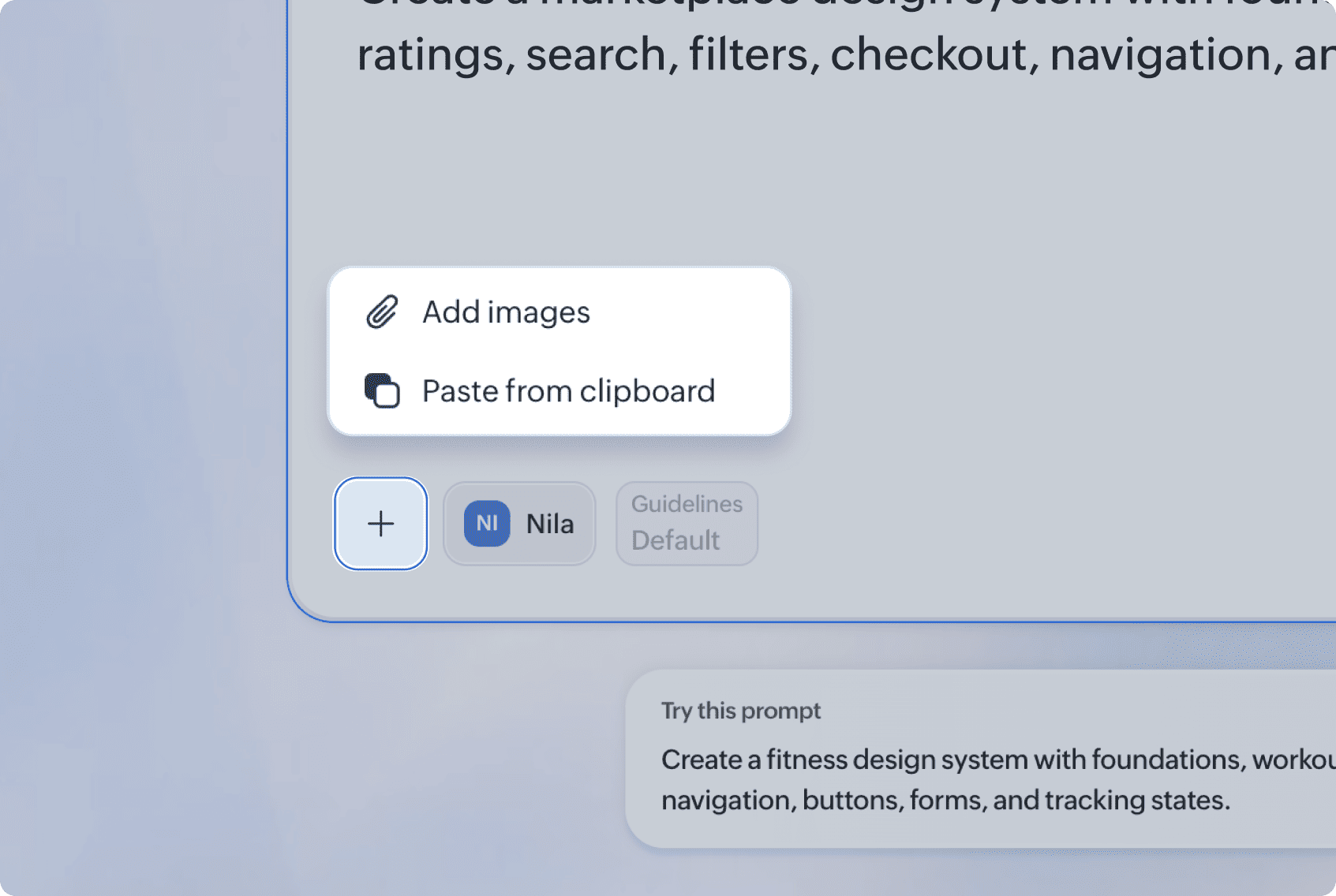
Adding references is optional. Any references you provide are used along with your prompt and other context.
Choose an AI Model
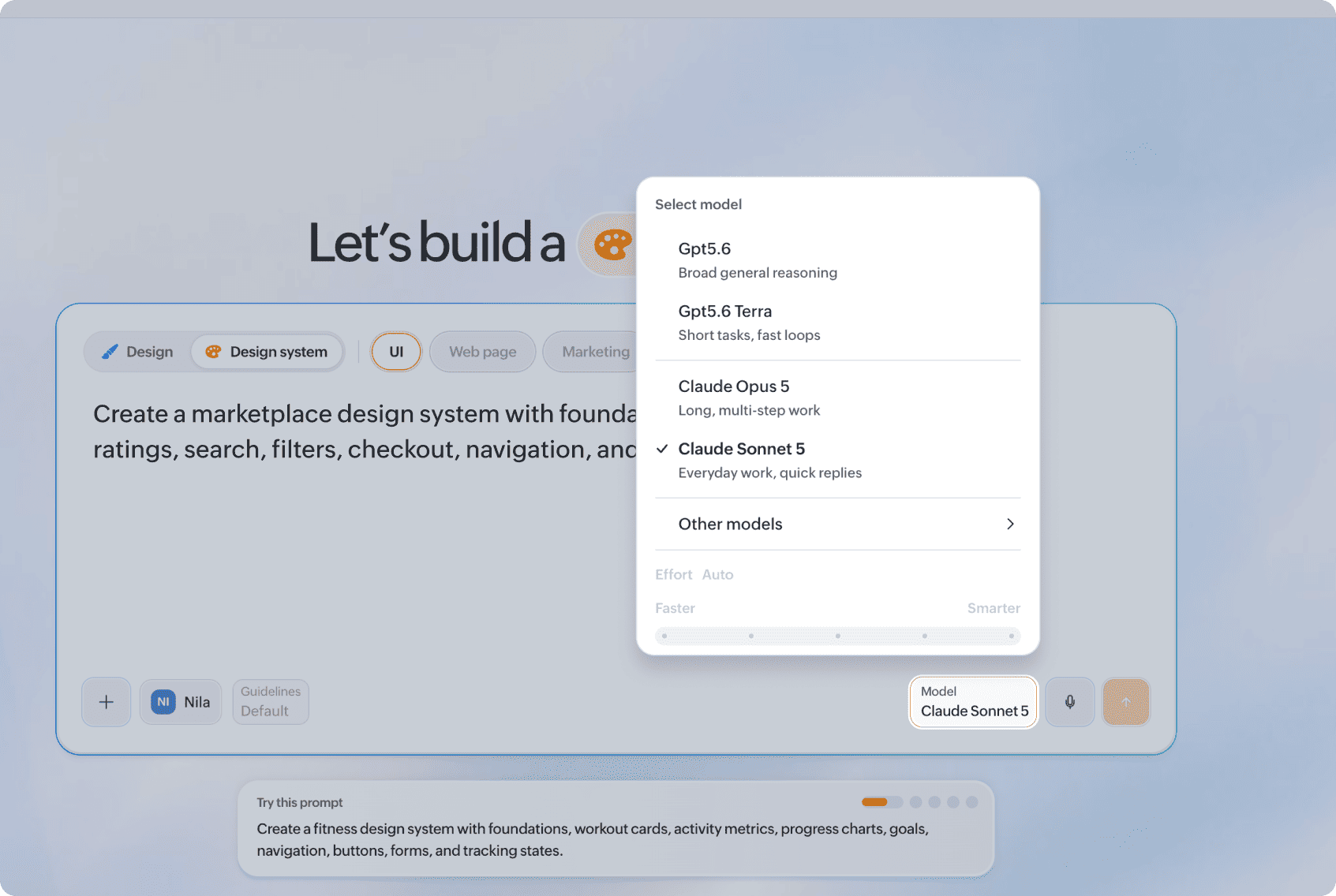
Use the Model selector to choose the AI model for your request.
The selected model appears in the prompt field. You can choose a model before generating your design system and switch models later when sending follow-up prompts.
Switching models does not require you to start over. Your existing design system and conversation remain available.
Use Voice Input
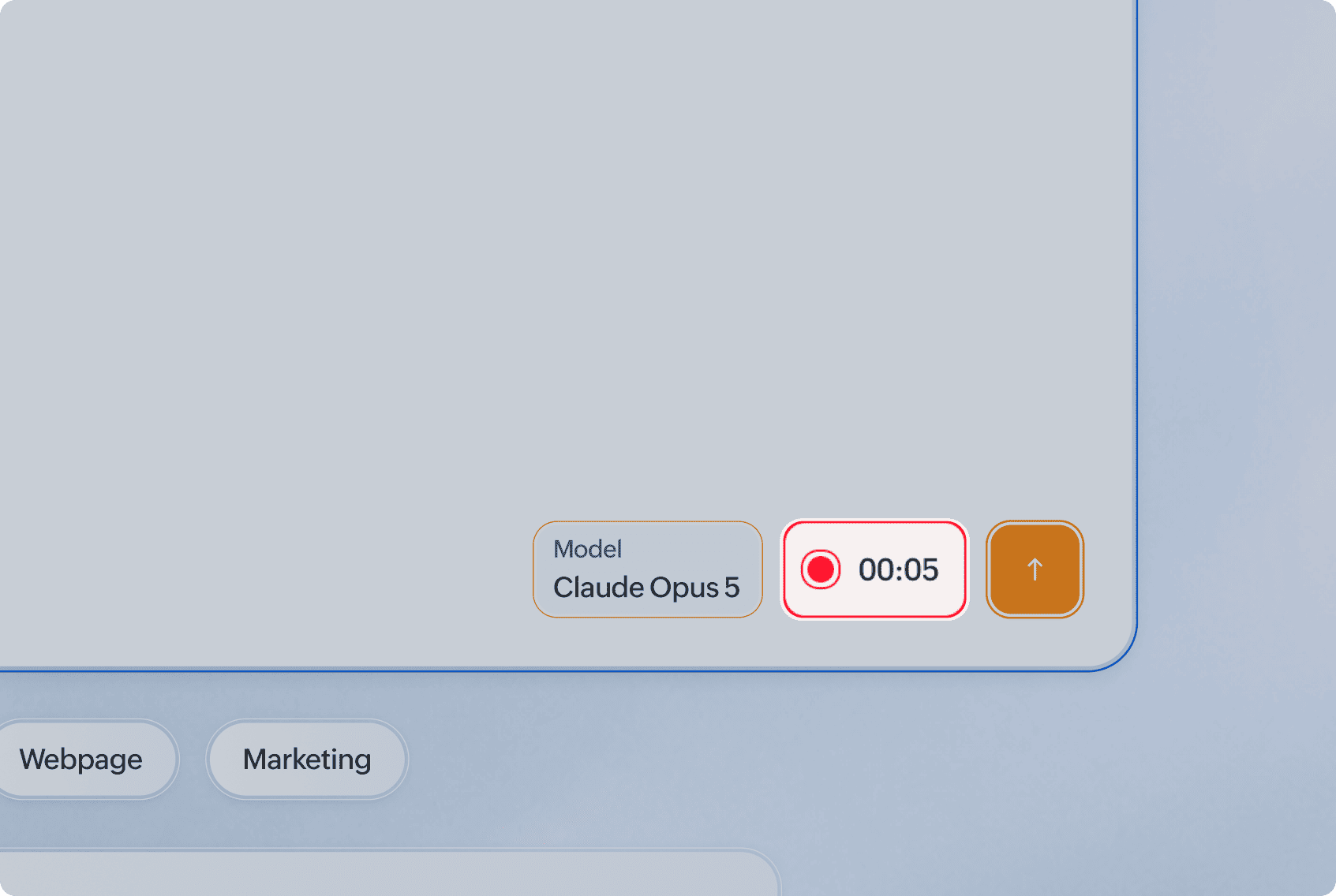
Select the microphone icon to enter your prompt using your voice.
Describe the product and the design system you want to create, then review the captured prompt before submitting it.
This can be useful when you want to provide detailed requirements without typing a longer prompt.
Create Your Design System
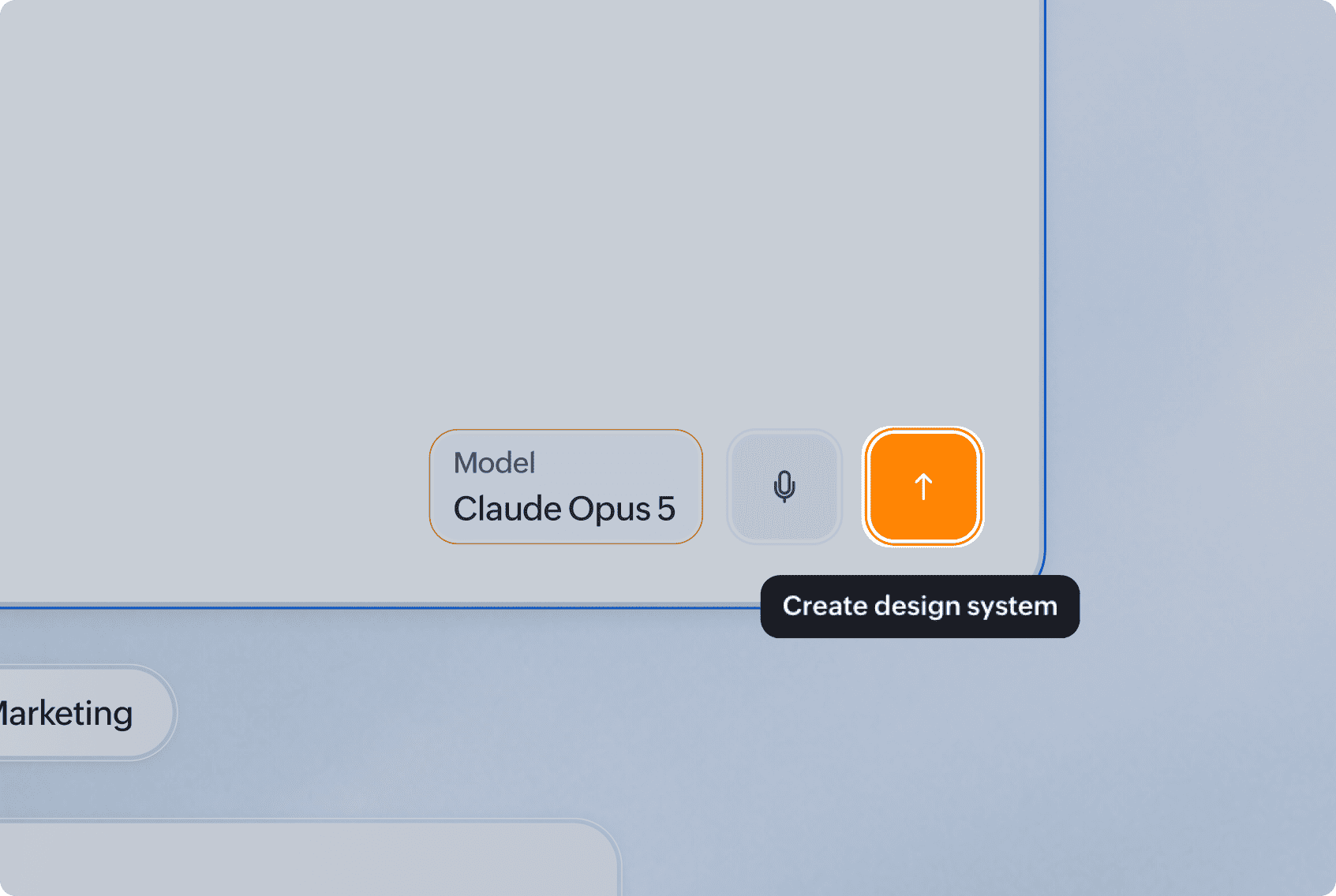
Once your prompt and context are ready, submit the request.
Nila AI can use the following context to create your design system:
Your prompt.
Guidelines.
Reference images or files.
The selected AI model.
You don't need to provide every type of context for every request. Add only what's relevant to the design system you're creating.
Once creation begins, your design system opens on the canvas with the Nila AI panel alongside it. You can follow the generation progress from the panel and continue working with Nila AI when the result is ready.
Start From a Suggested Prompt
If you're not sure where to begin, use one of the suggested prompts below the prompt field.
Suggested prompts give you examples of how to describe a design system and the resources it should include.
For example:
Build a flexible travel design system for web and mobile. Include foundations, search, filters, destination cards, date pickers, booking flows, navigation, and alerts.
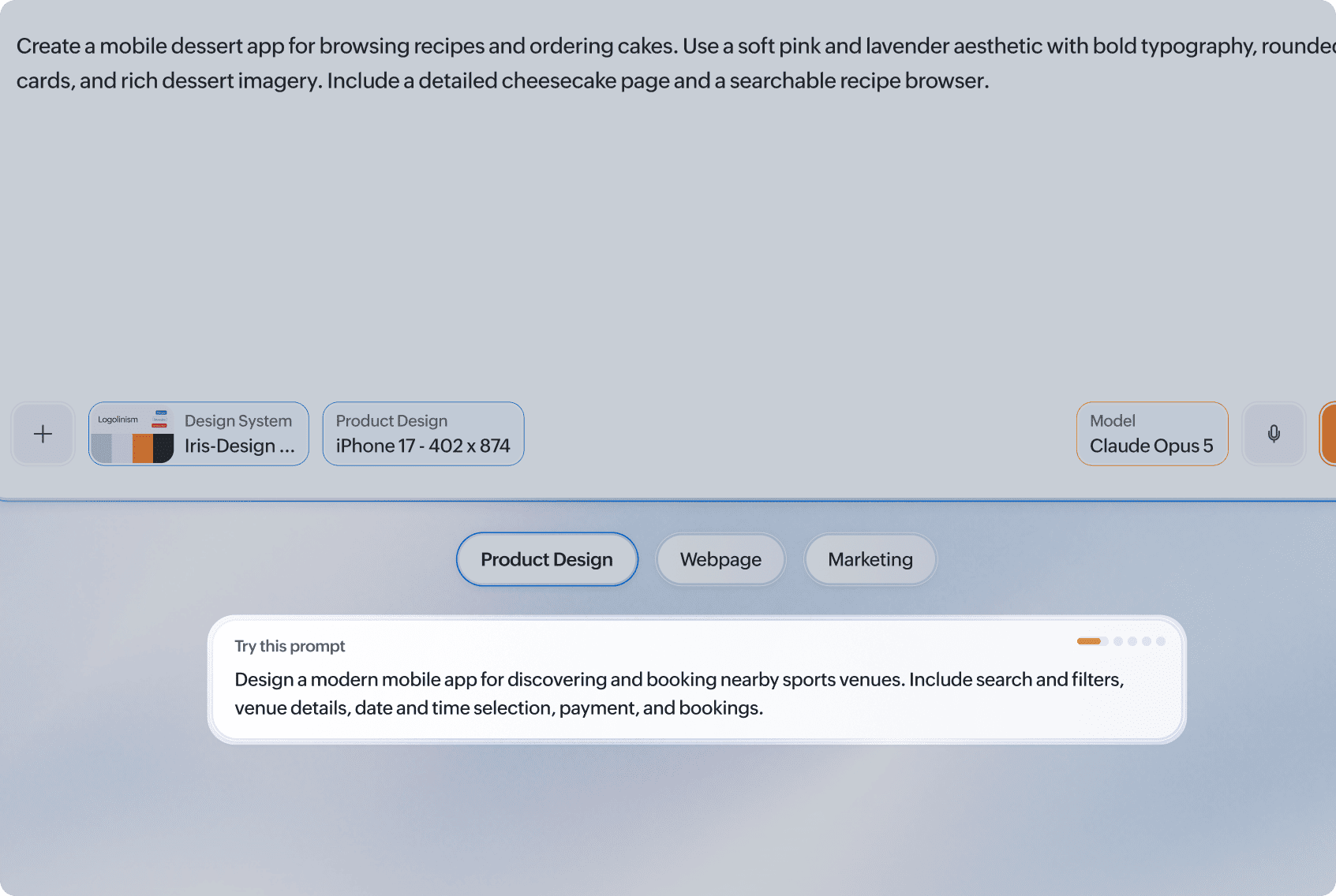
Select a suggestion and edit it to match your product and requirements before submitting it.
Work With Your Design System on the Canvas
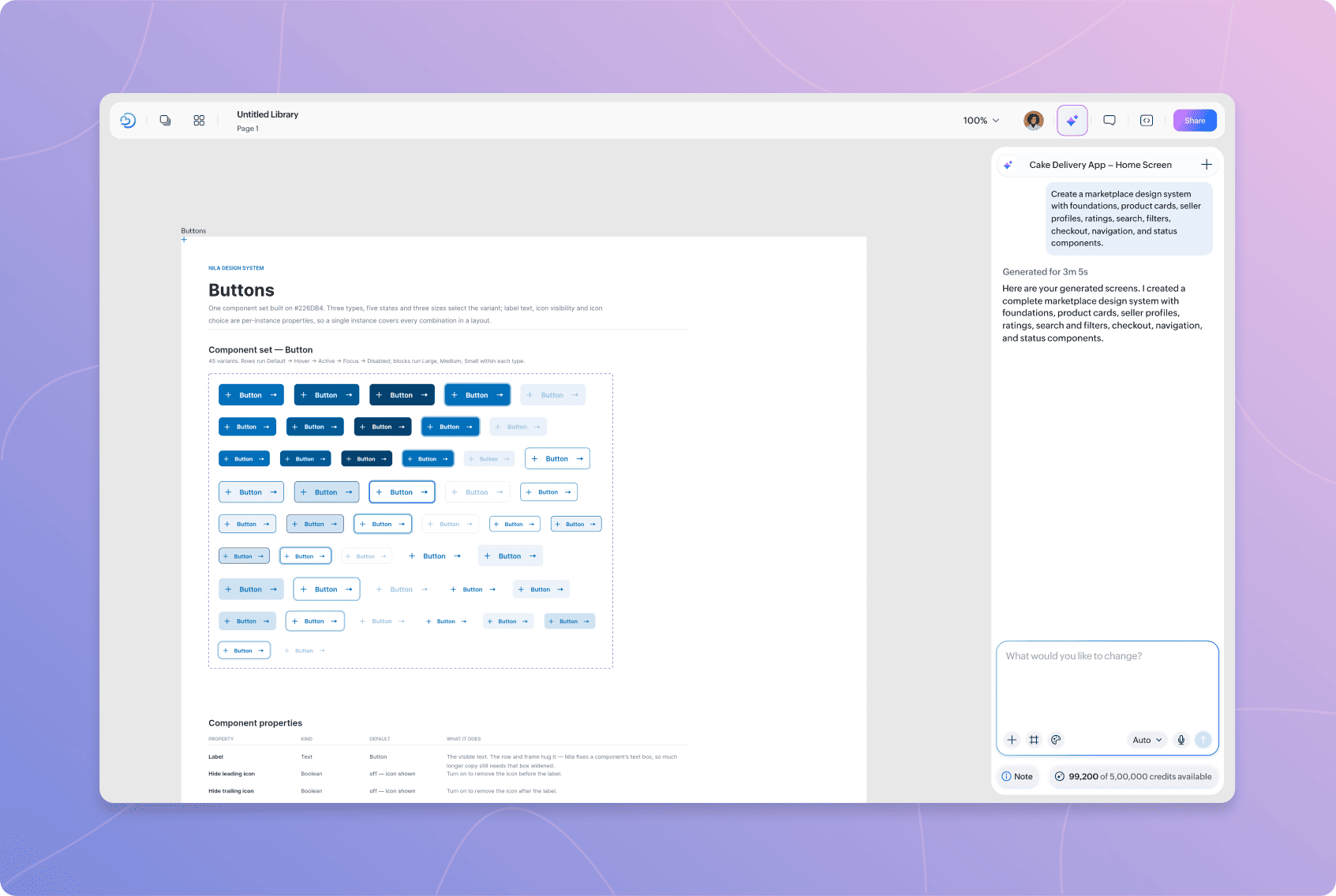
Once generation begins, your design system opens on the canvas with the Nila AI panel alongside it.
The panel keeps your AI conversation connected to the system you're building. You can review your original prompt, follow the generation progress, and continue sending instructions without returning to the initial creation screen.
Use the prompt field in the Nila AI panel whenever you want to make another change or expand the system.
Refine Your Design System
Once your design system is generated, continue working with Nila AI from the panel alongside the canvas.
Your original prompt and previous requests remain in the conversation, so you can build on the same system with follow-up prompts instead of starting over.
For example, you can ask Nila AI to:
Add new components or component states.
Refine colors or typography.
Update existing components.
Add patterns for a particular product flow.
Change the visual direction.
Add missing foundations or reusable elements.
Account for new product requirements.
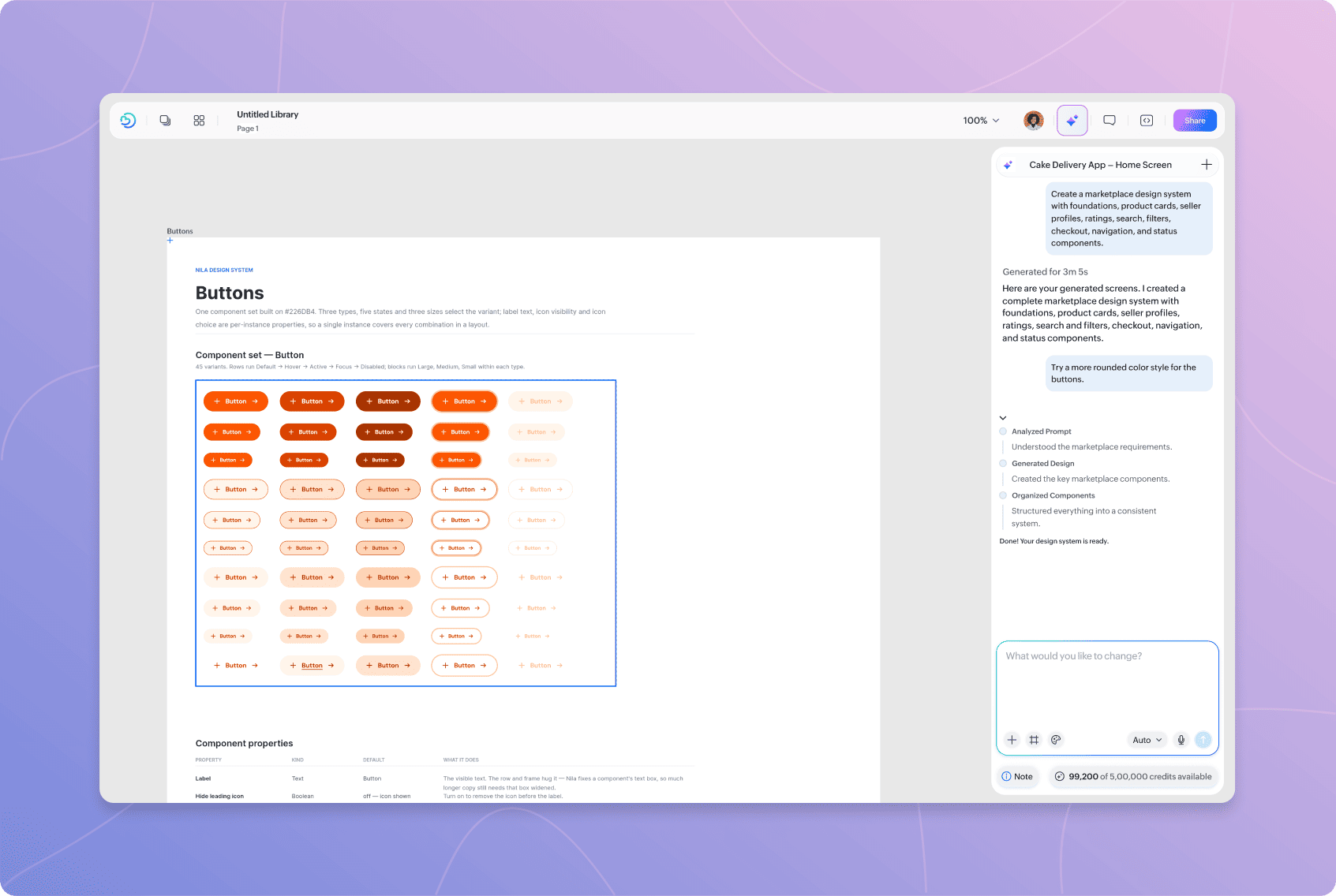
Be specific about what you want to add or change. Instead of asking Nila AI to add more components, describe the components or product scenario the system needs to support.
You can also add new references, use voice input, or switch AI models as you continue refining the system.
Found this helpful?

Can't find what you need?
Try refining your search or explore our Help Center
